RevSure Twitter Integration Implementation Guide
This page is part of RevSure’s Comprehensive FAQs, your all-in-one hub for answers on capabilities, data, security, scalability, configurability, and more. Click here to return to the FAQ home.
This page is part of RevSure’s Comprehensive FAQs, your all-in-one hub for answers on capabilities, data, security, scalability, configurability, and more. Click here to return to the FAQ home.


1. Navigate to Revsure App
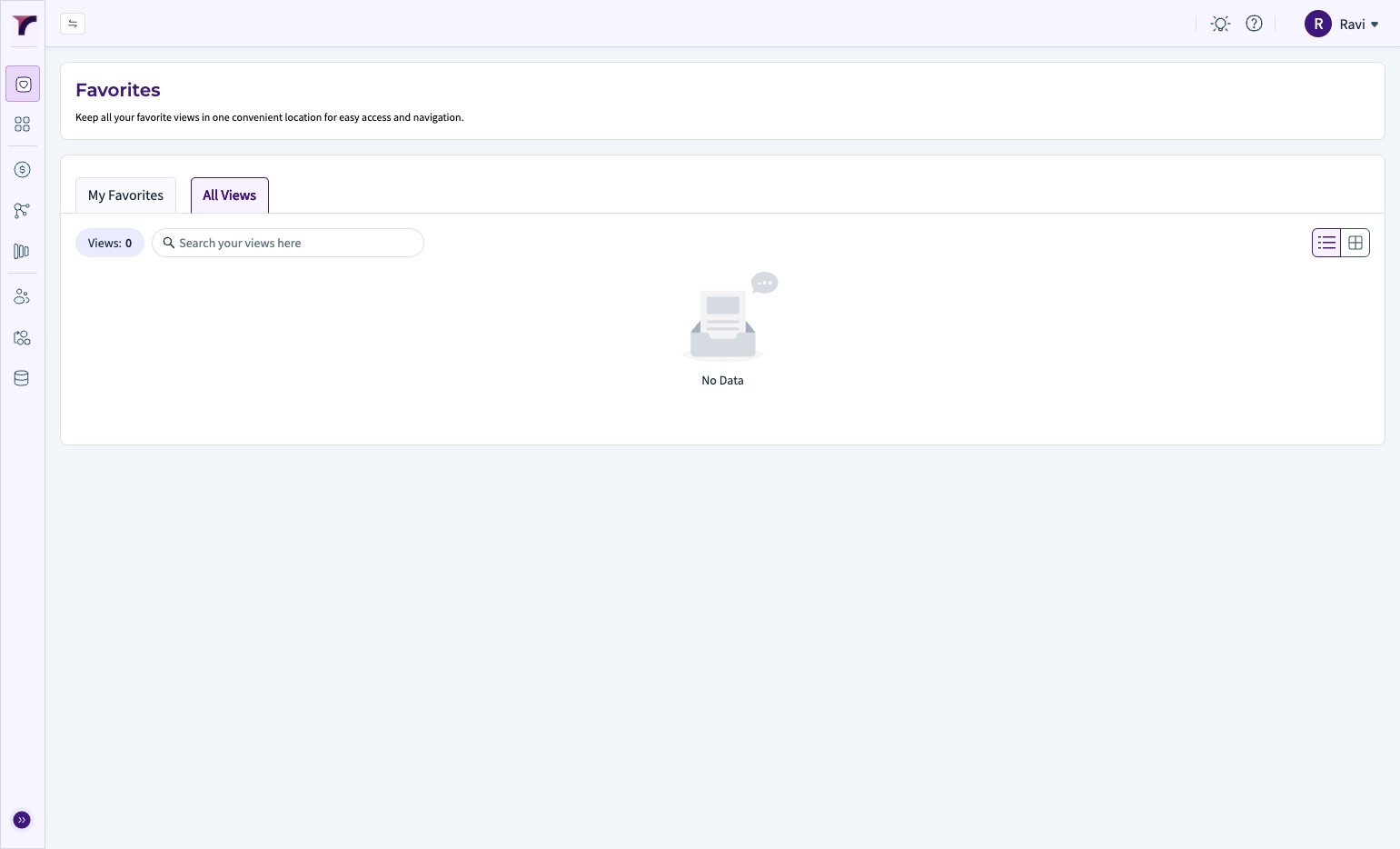
2. Click 'Data Hub'
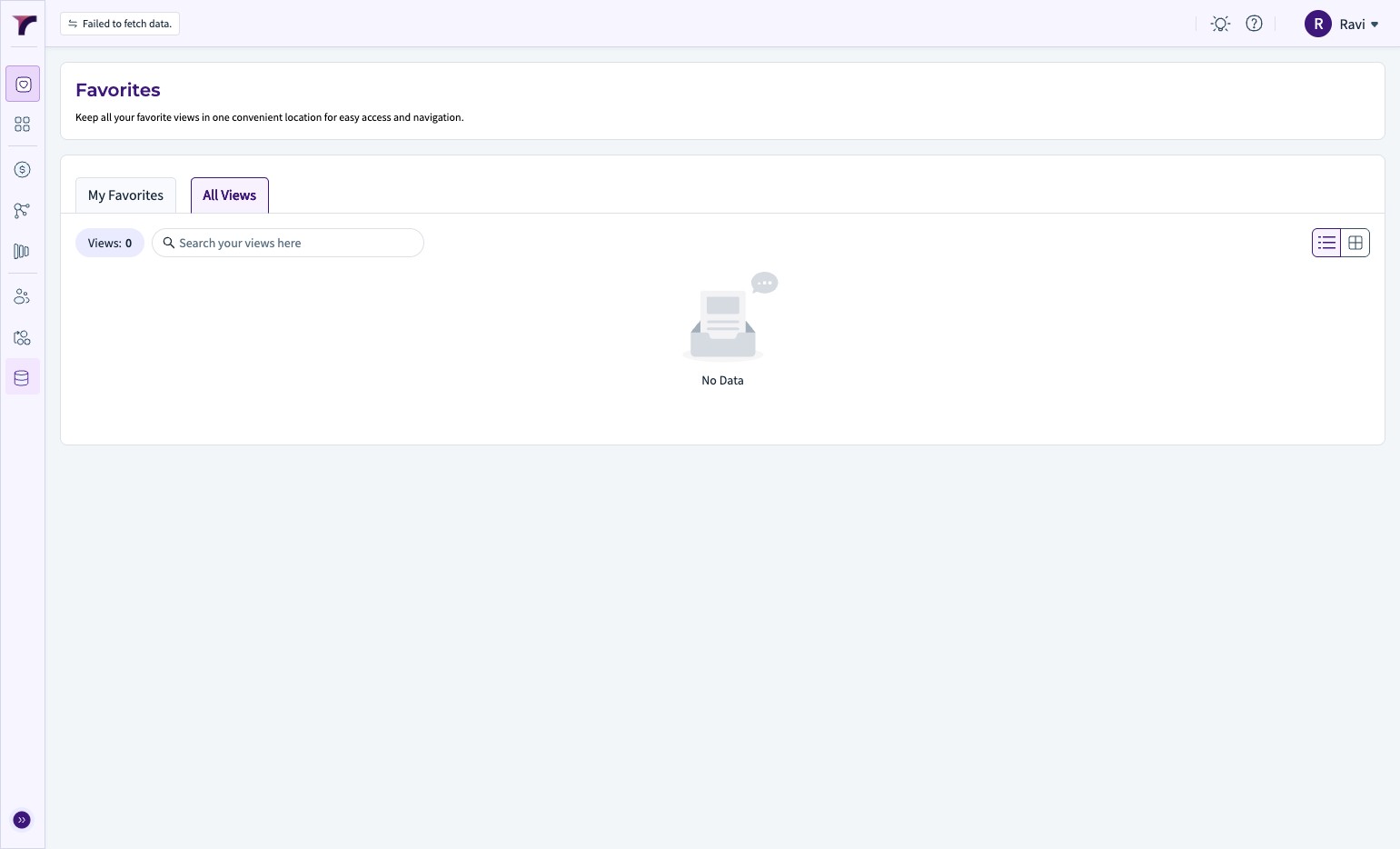
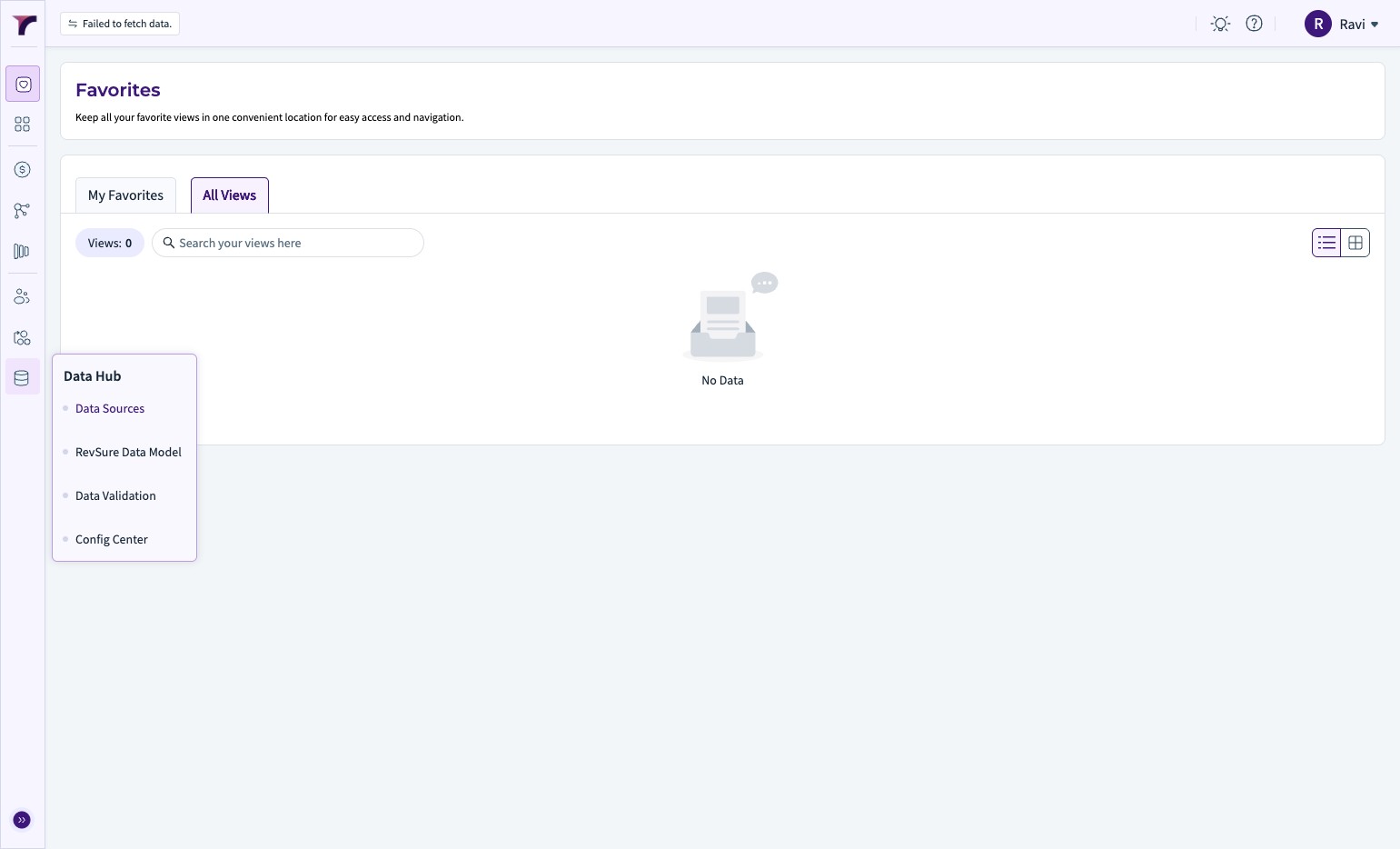
3. Click "Data Sources"
4. Click "Add New"
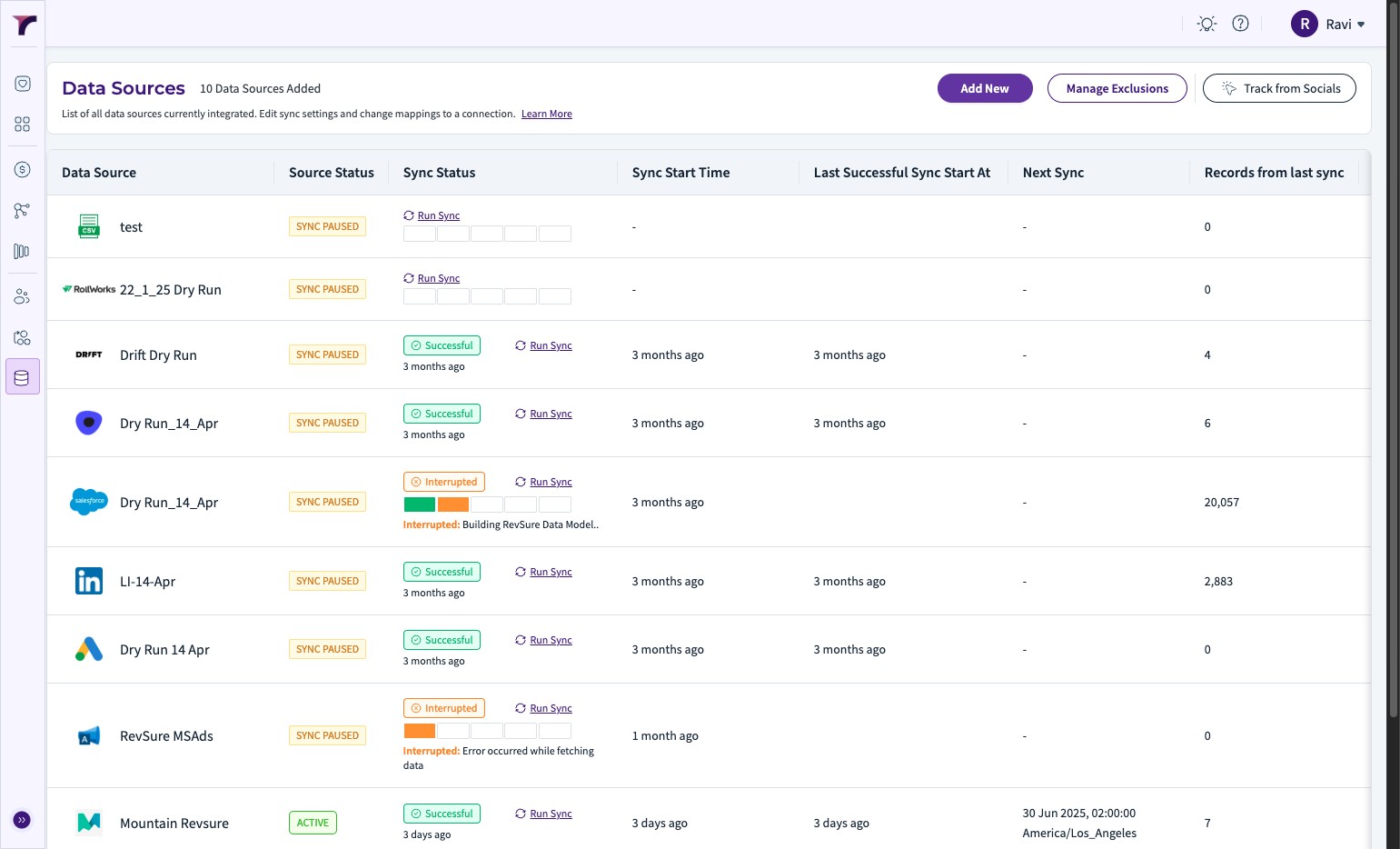
5. Select Twitter from the list of Sources
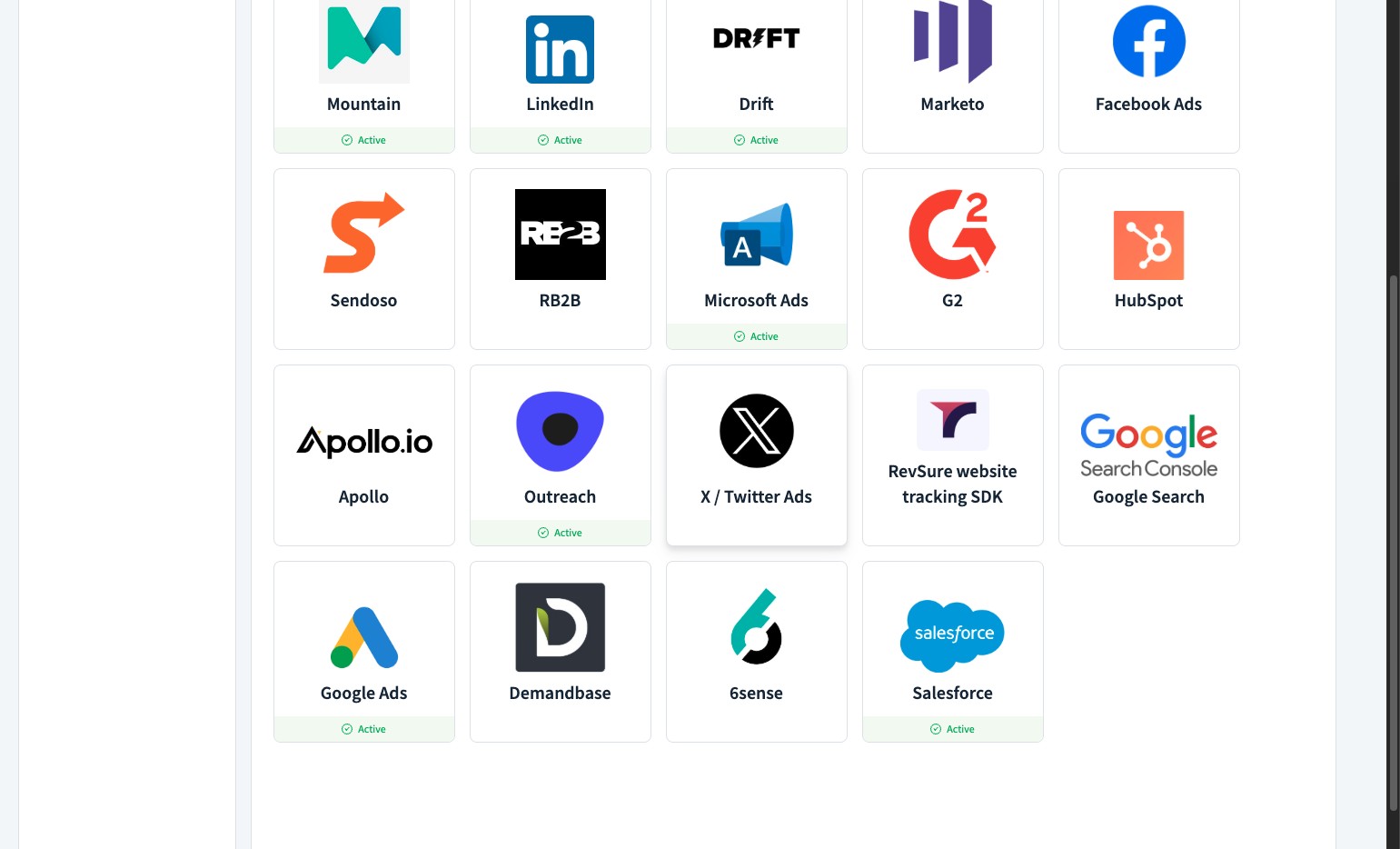
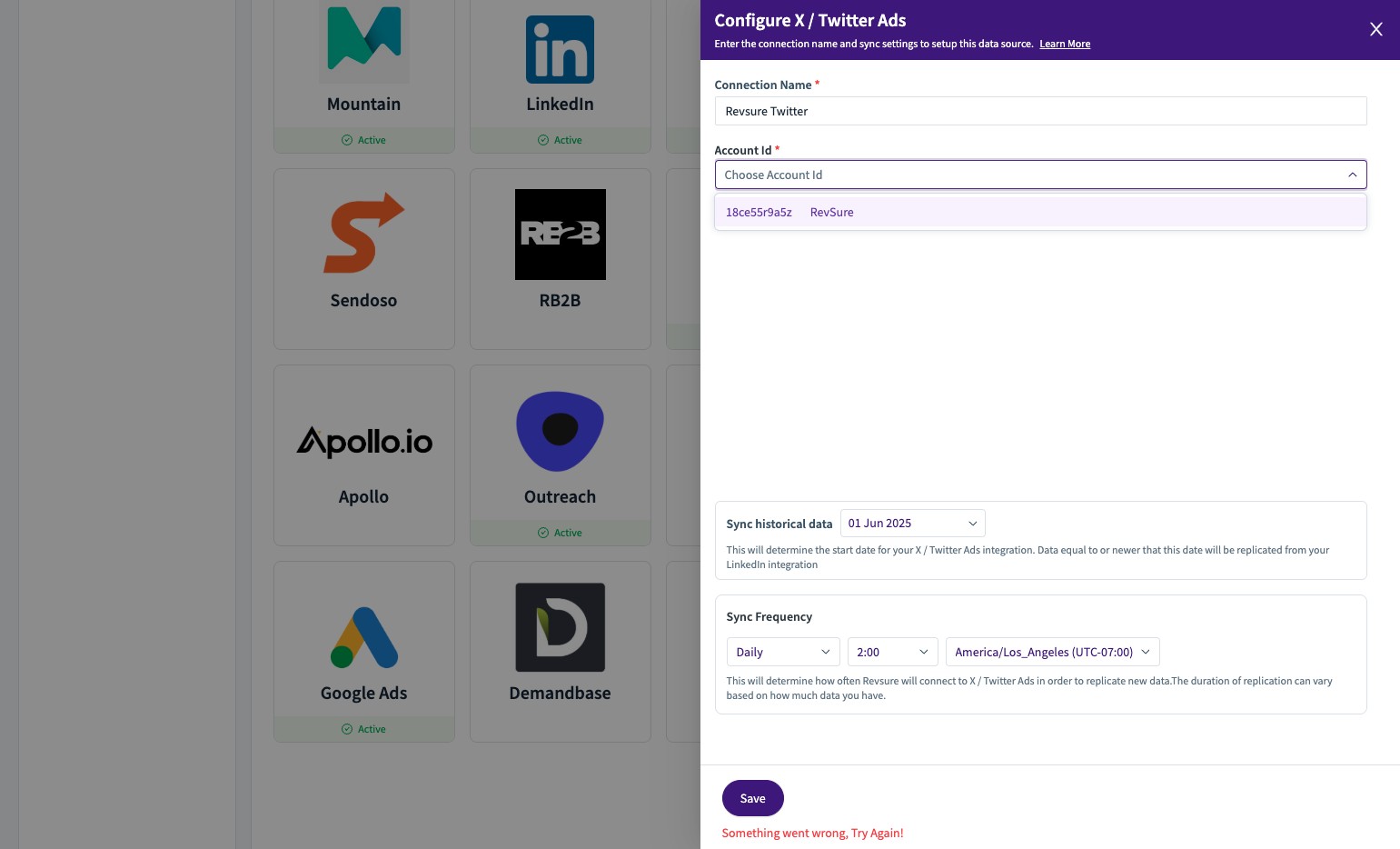
6. Set the "Connection Name" field
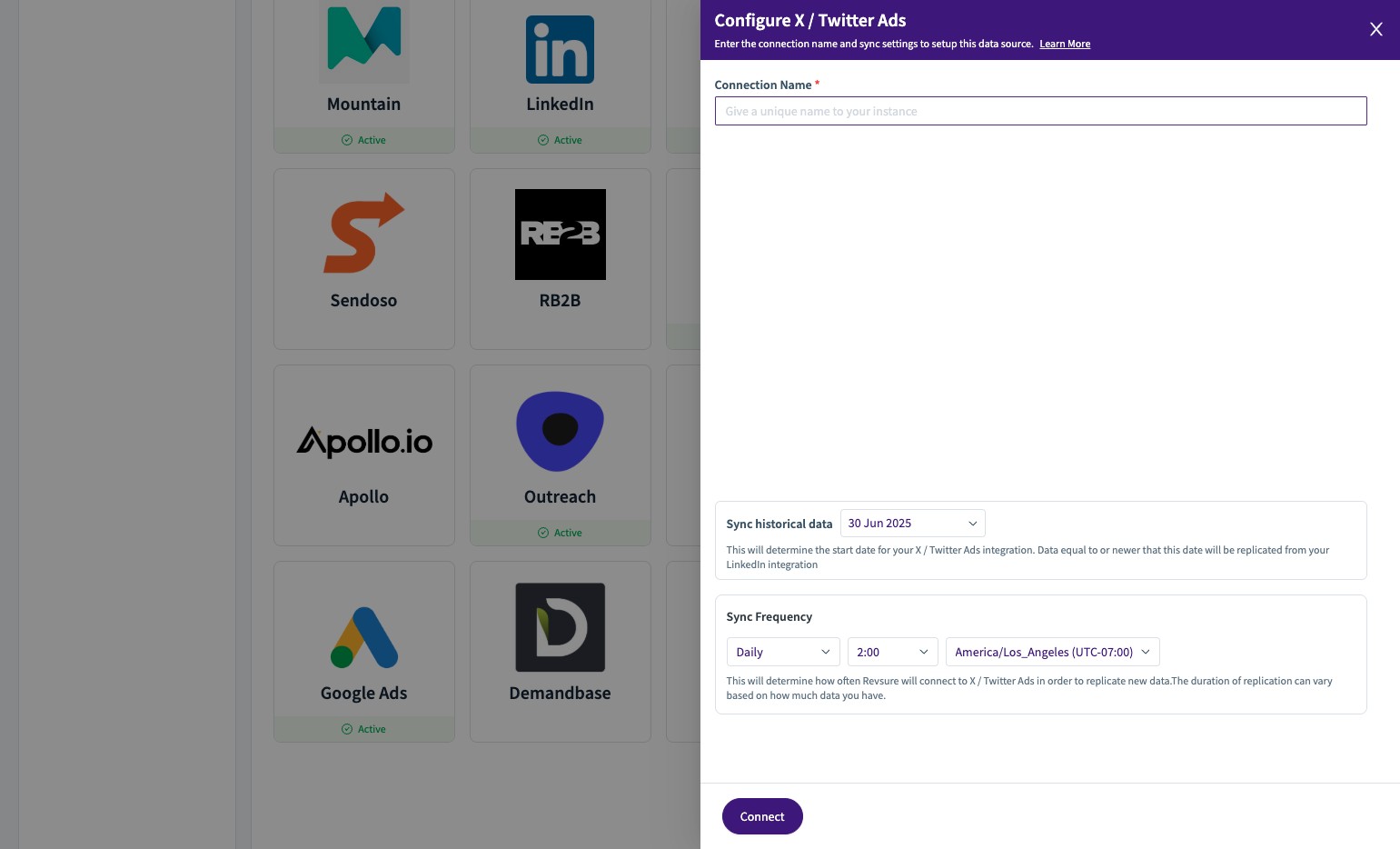
7. Use the Sync Historical Data Date Widget to fill the date from which we want data to be pulled
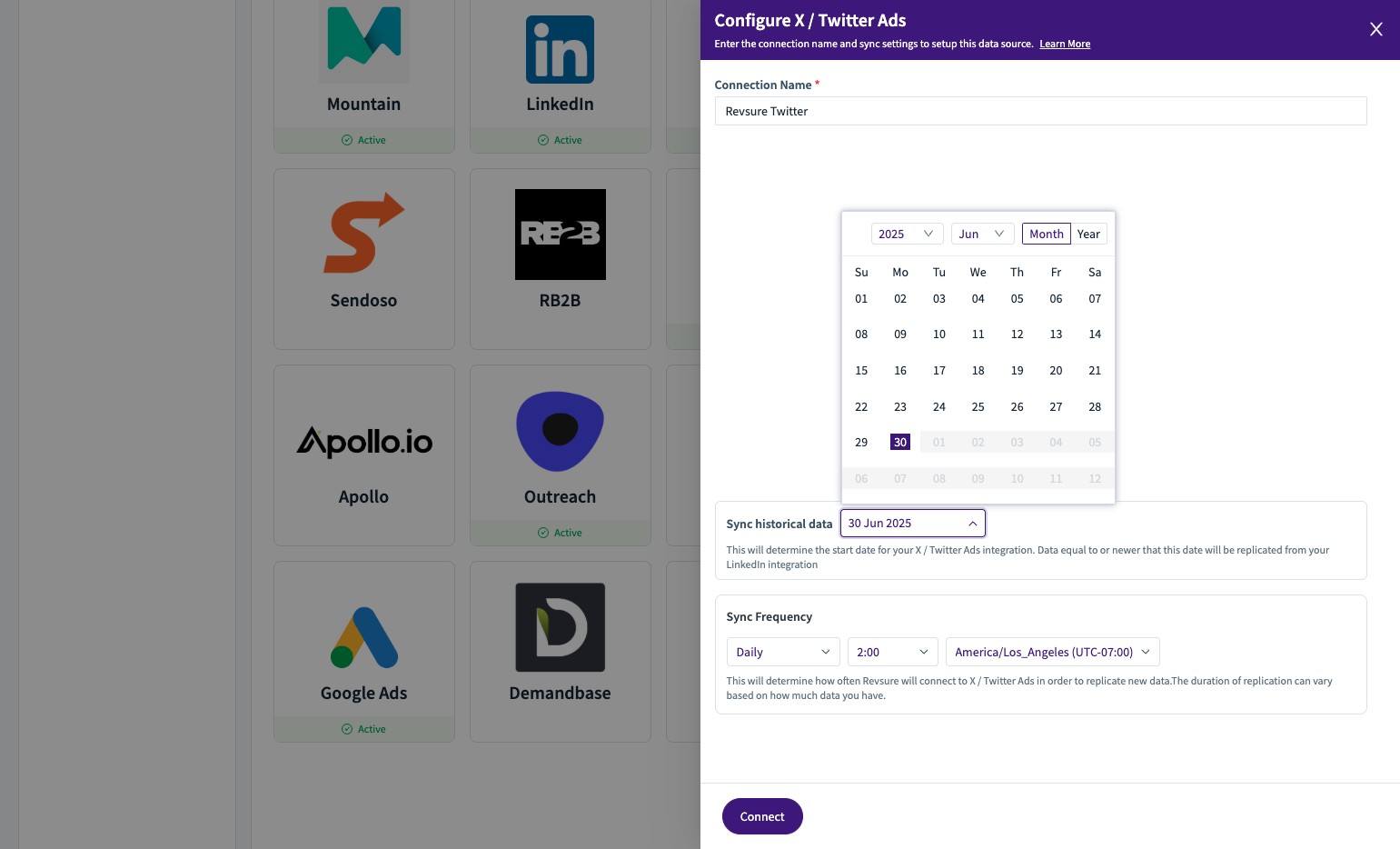
8. Click "Connect"
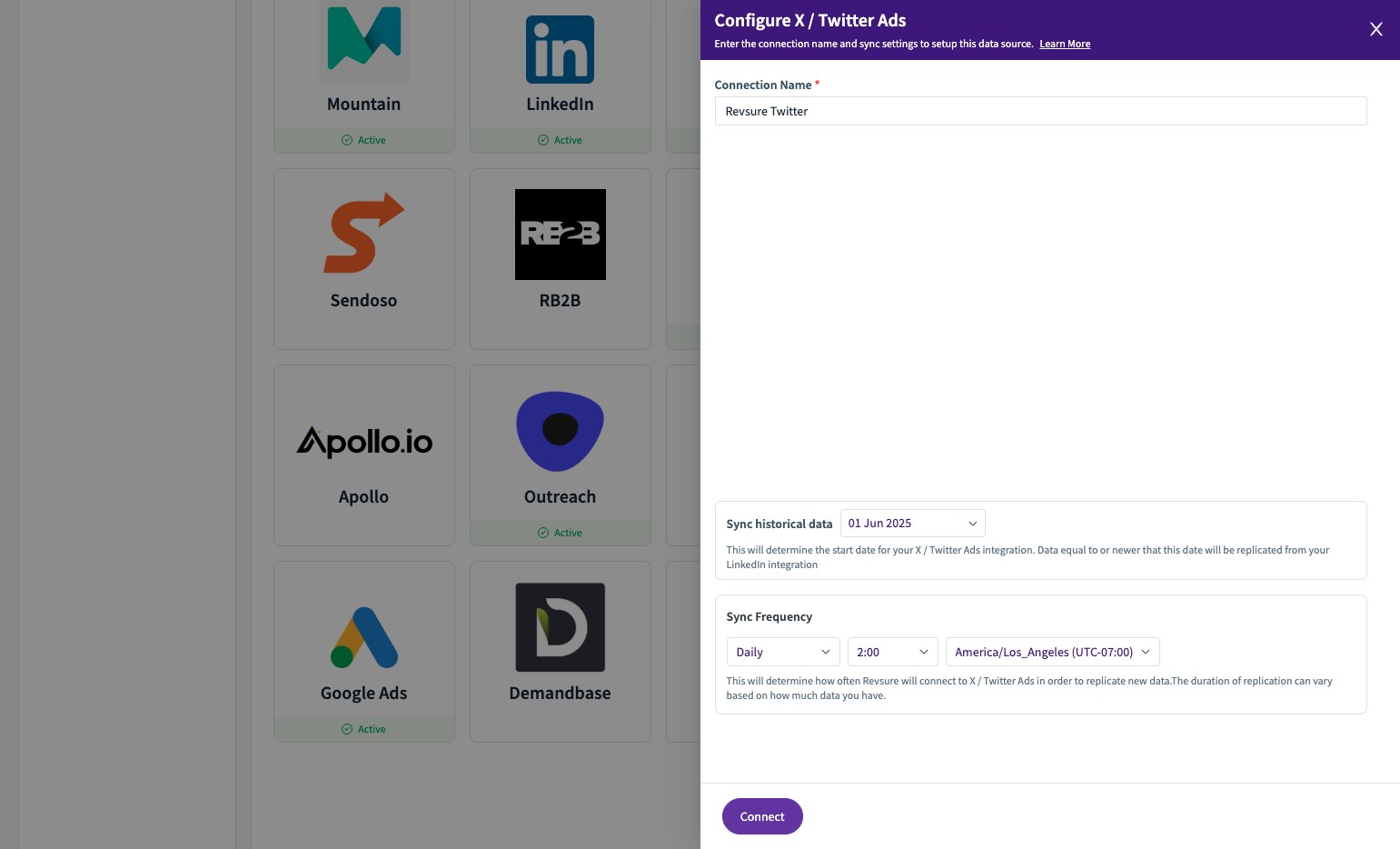
9. This would open a Pop Up to check permissions and Authorize Twitter Connection
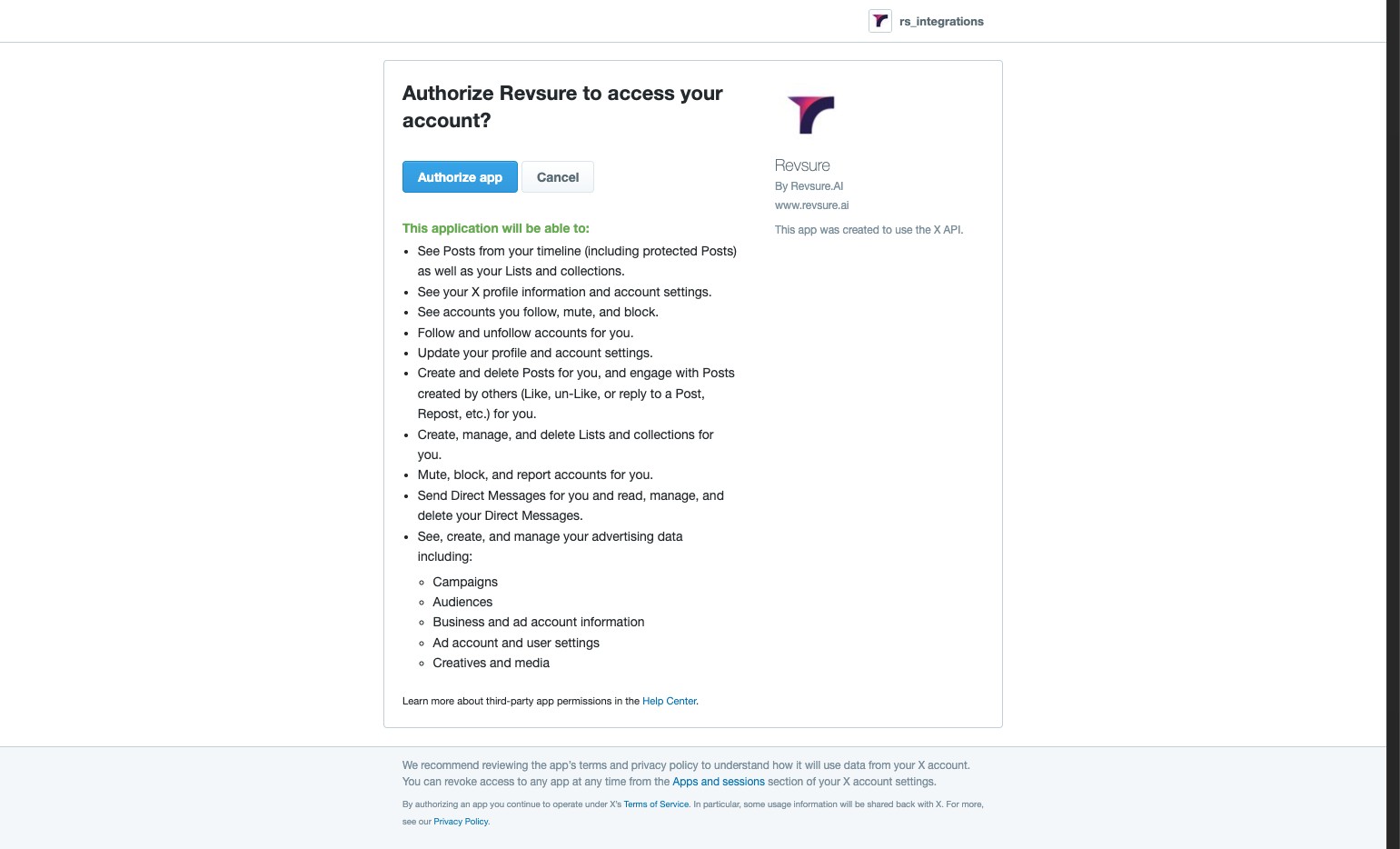
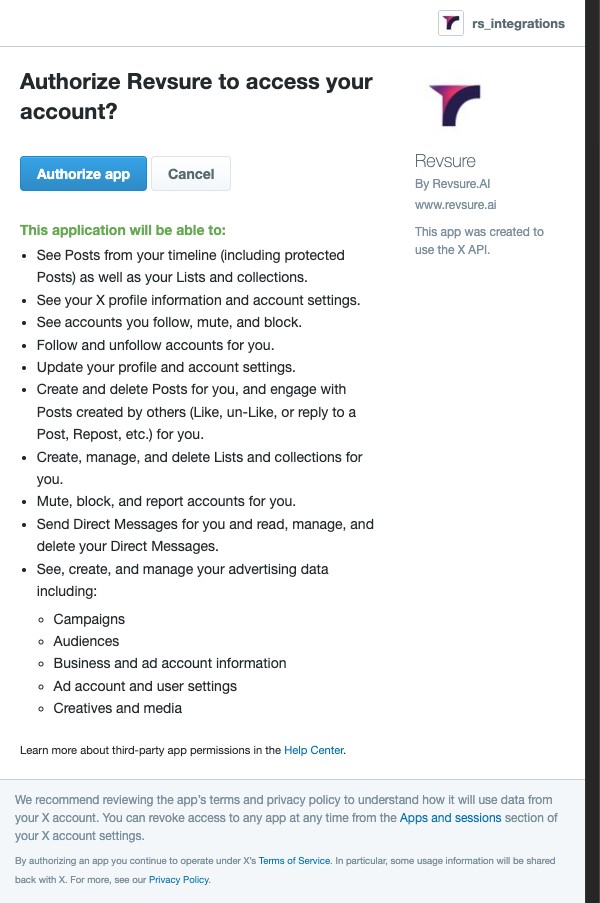
10. Click Authorize App Button
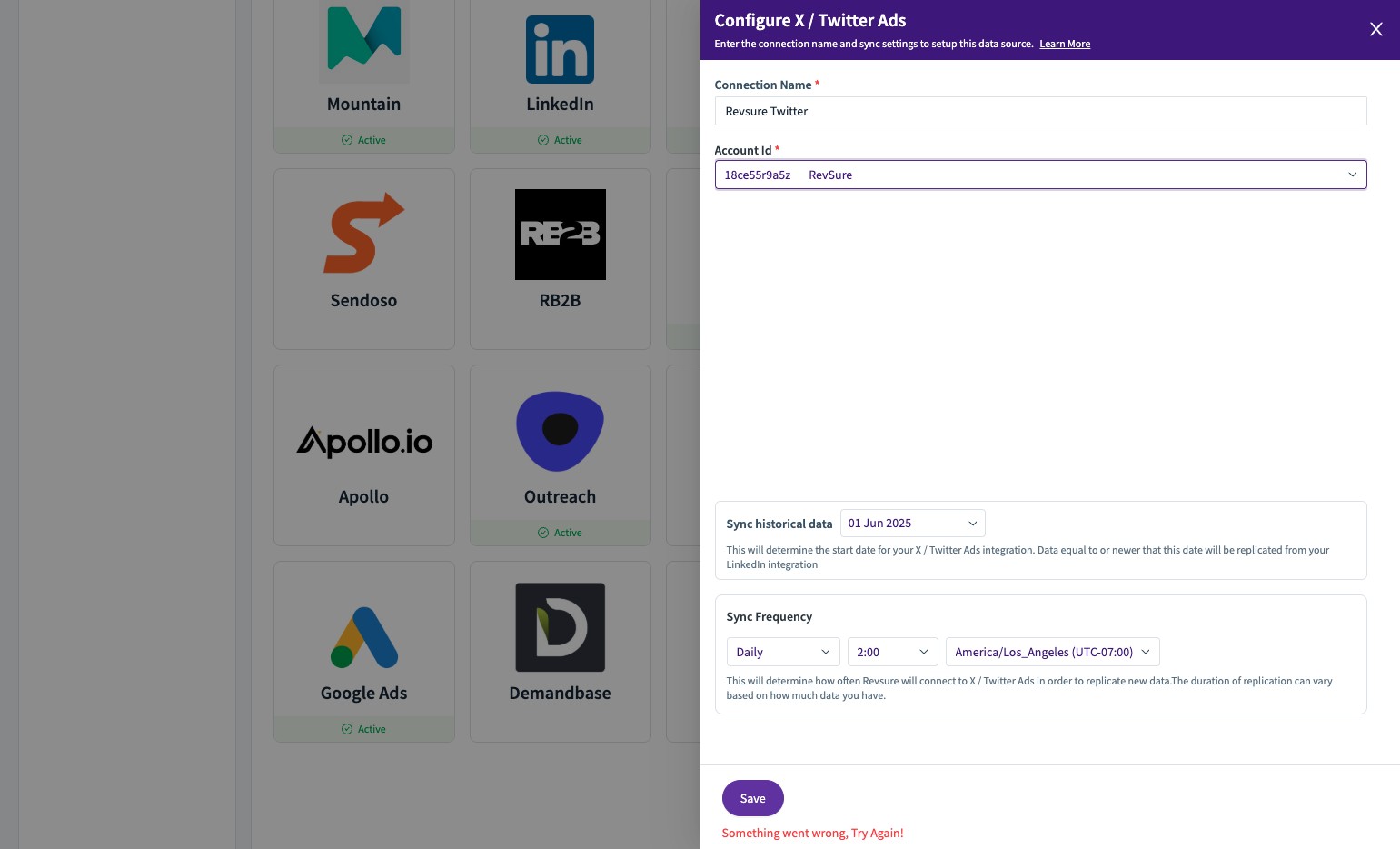
11. The Form would be Updated with an Account Id Field
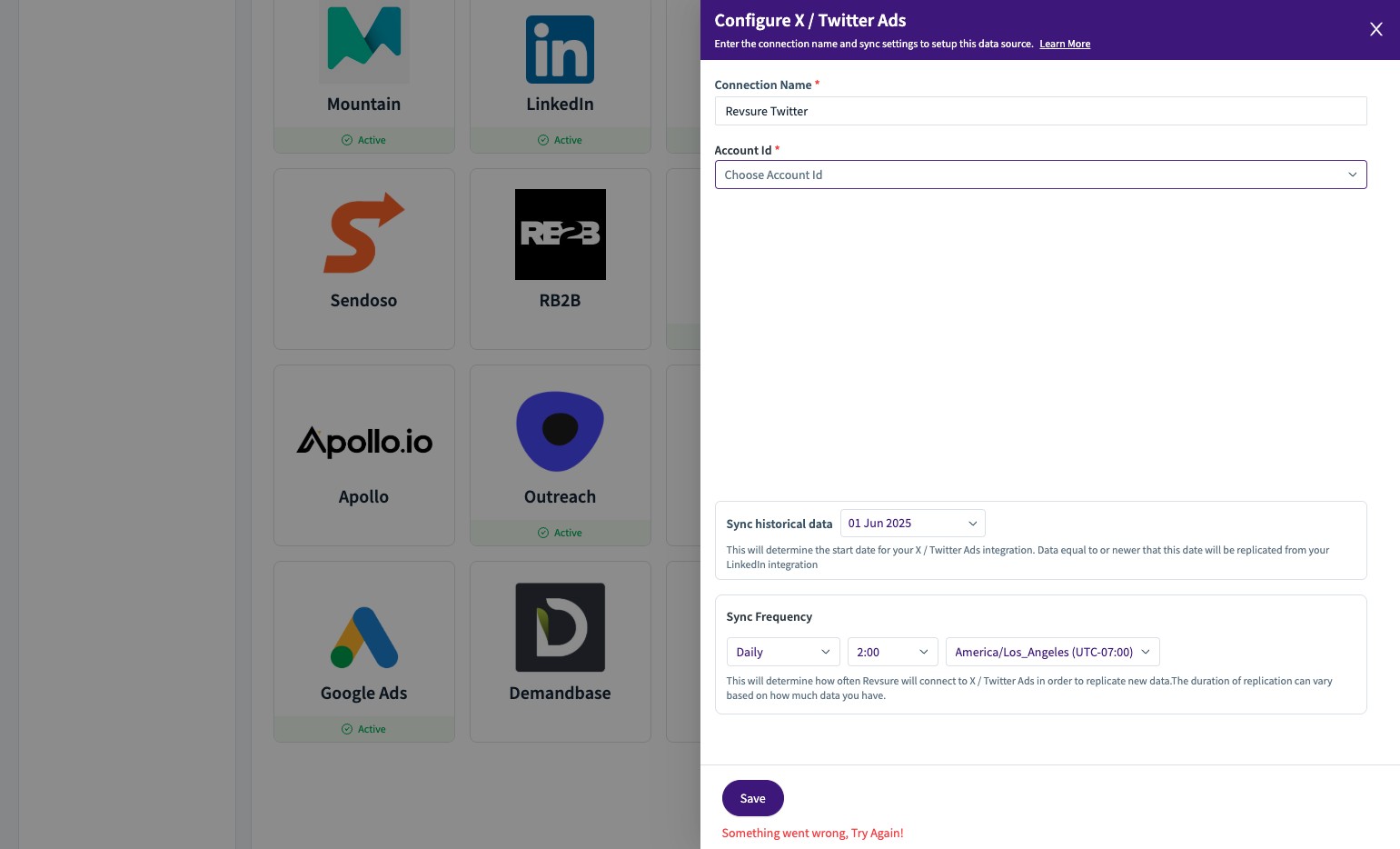
12. Click on the drop down and select the Account you wish to Connect
13. Click "Save"
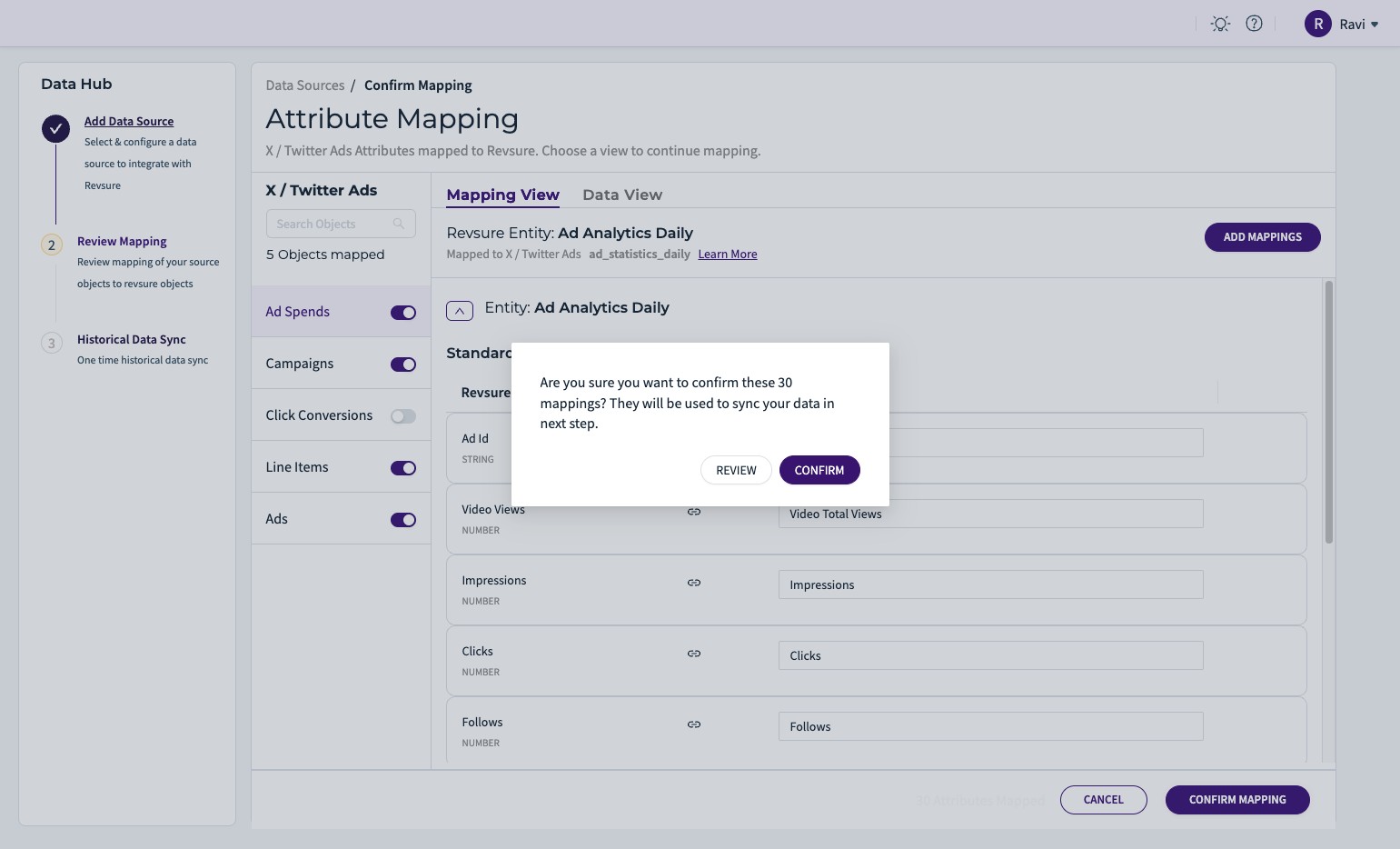
14. Click "Confirm Mapping"
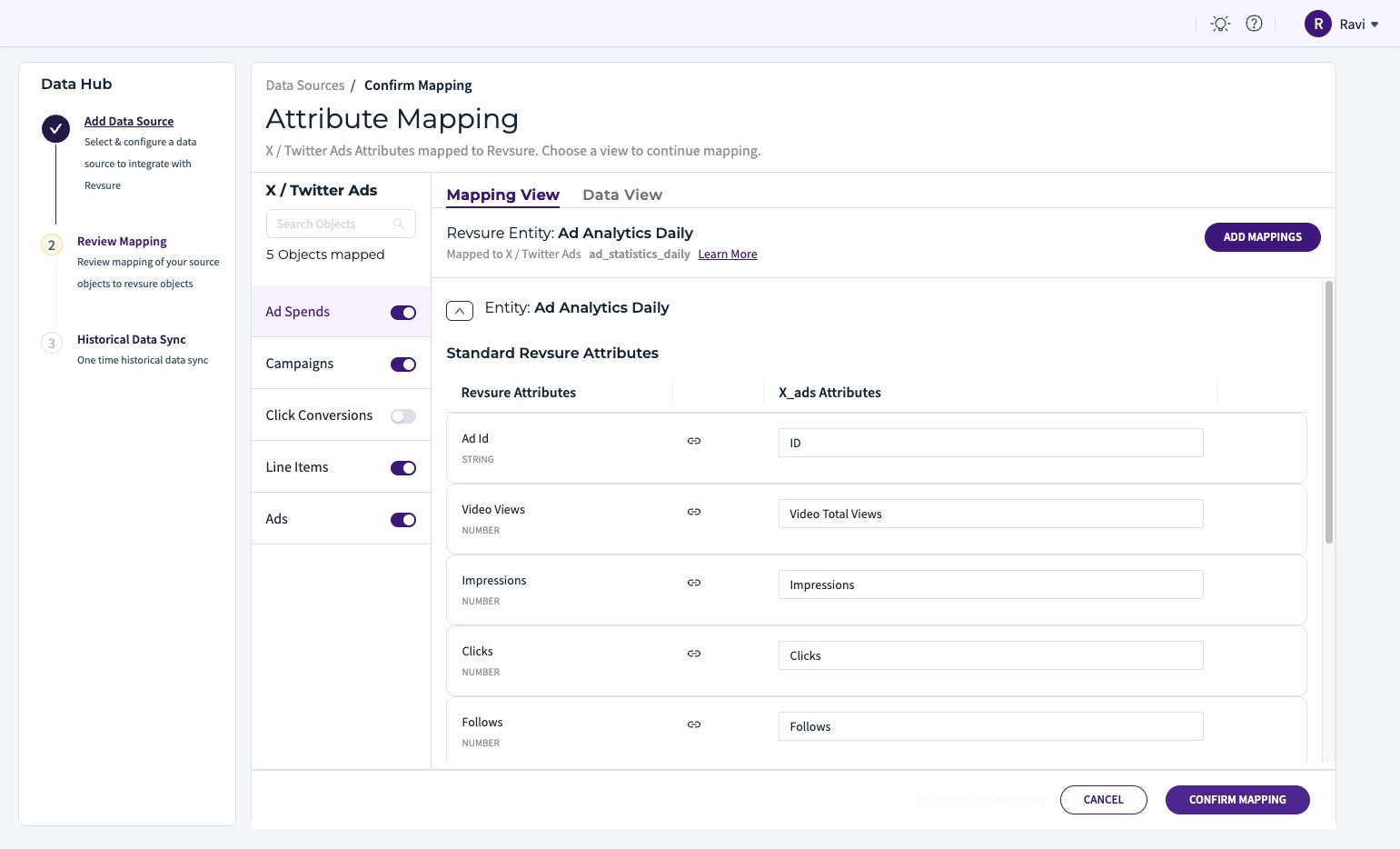
15. Click "CONFIRM"