Revsure Snowflake Destination Setup Implementation Guide - UI Flow

This page is part of RevSure’s Comprehensive FAQs, your all-in-one hub for answers on capabilities, data, security, scalability, configurability, and more. Click here to return to the FAQ home.


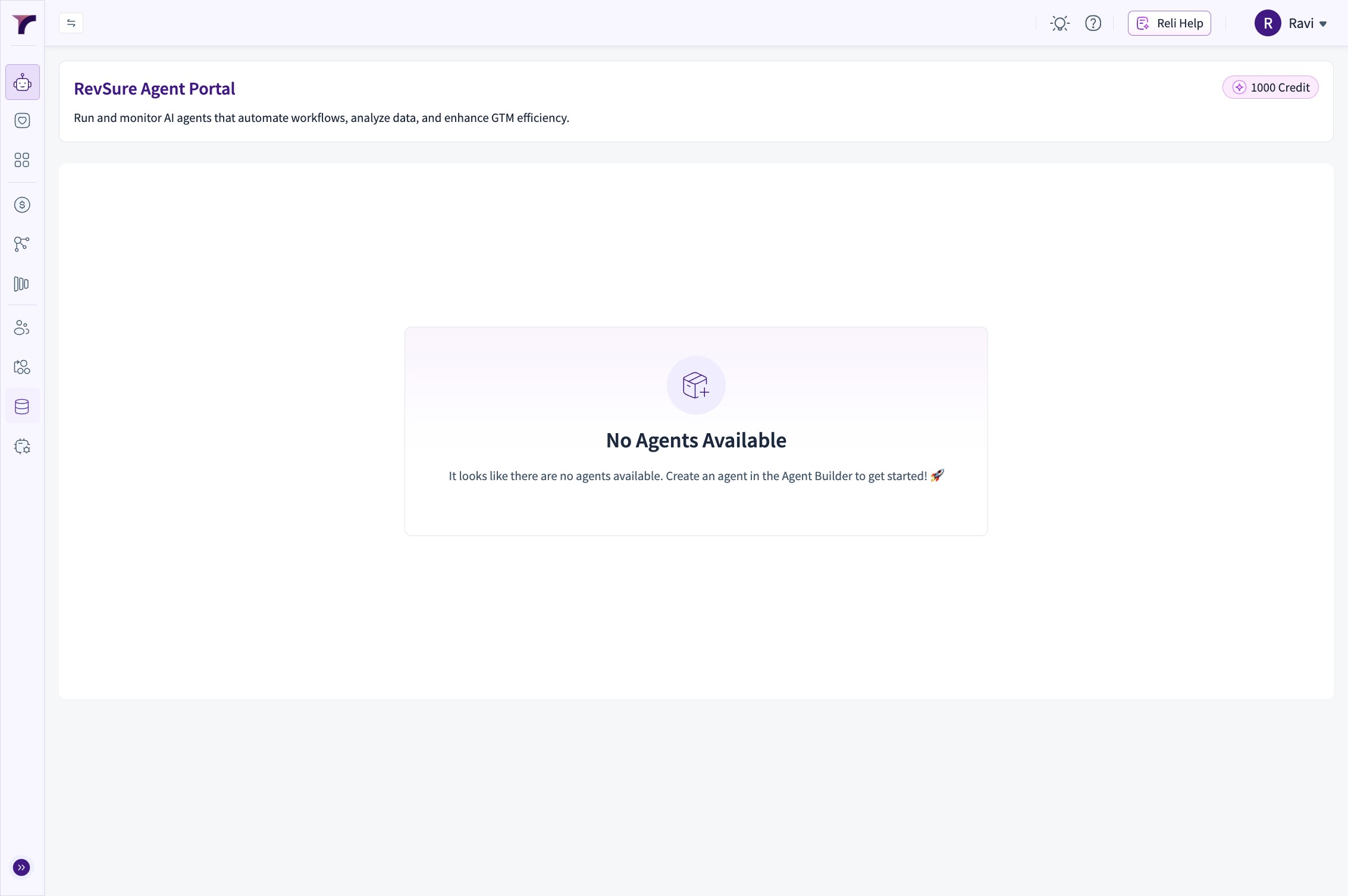
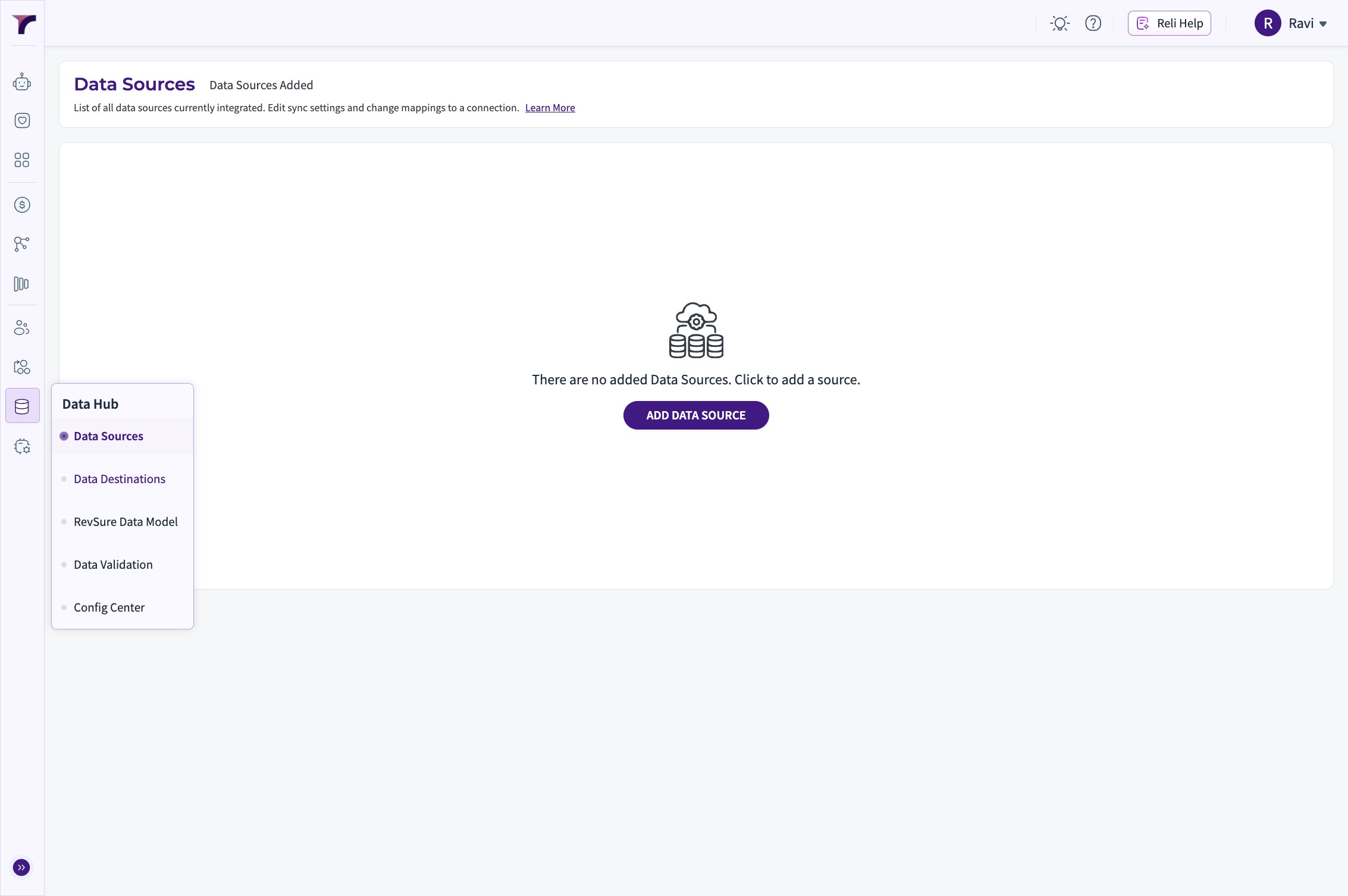
1. Click "Data Hub"

2. Click "Data Destinations"

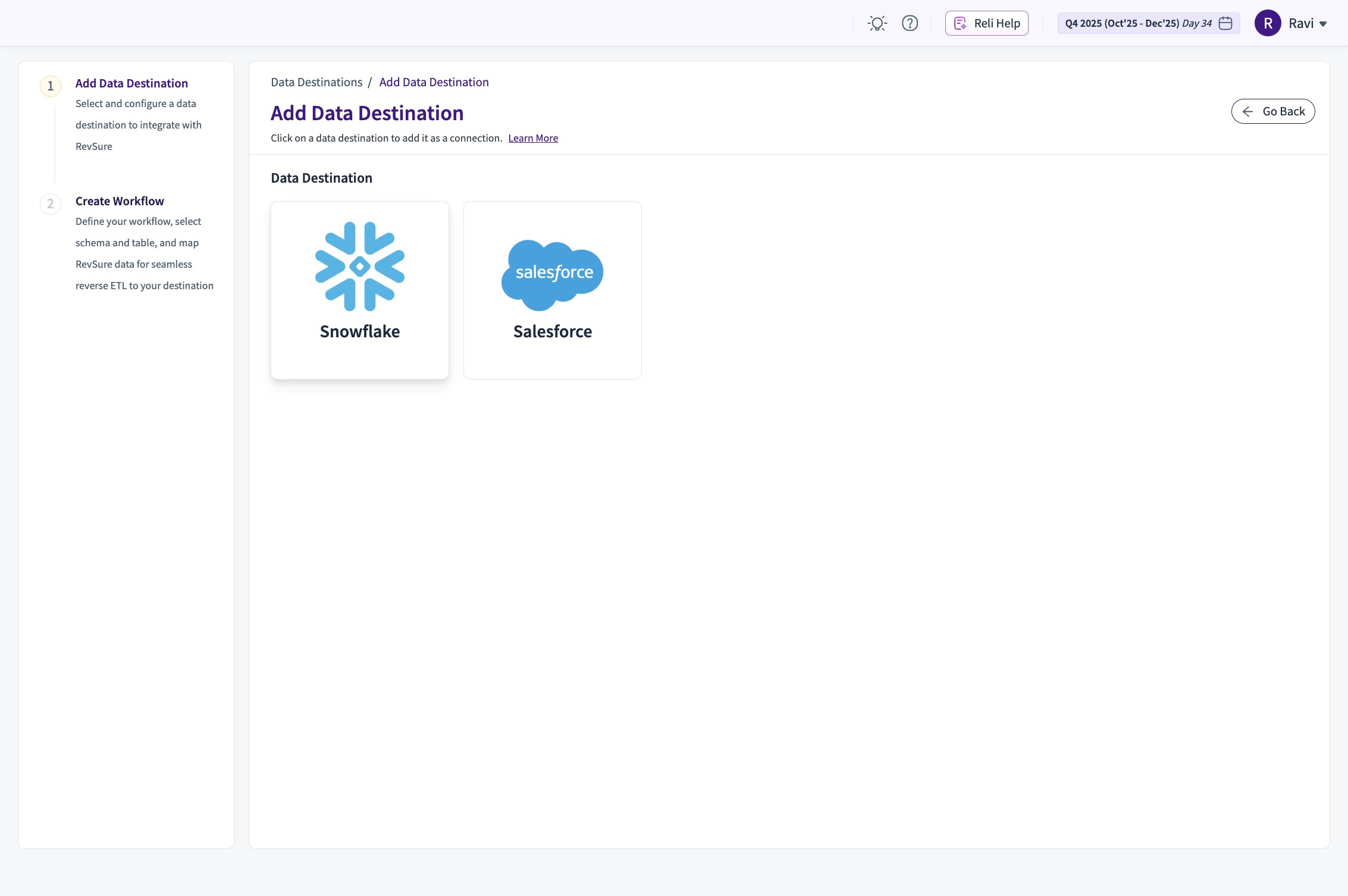
3. Click this image

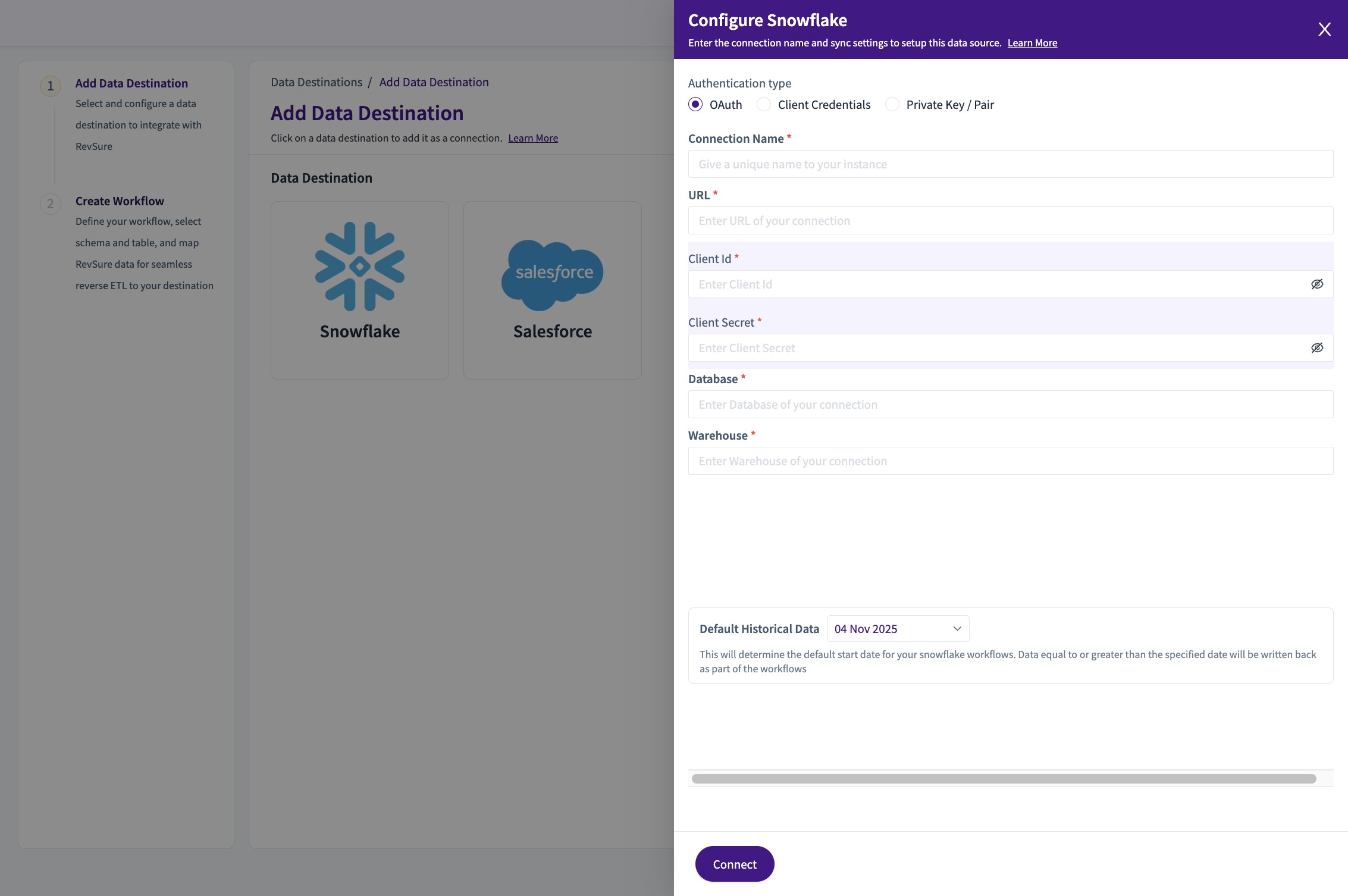
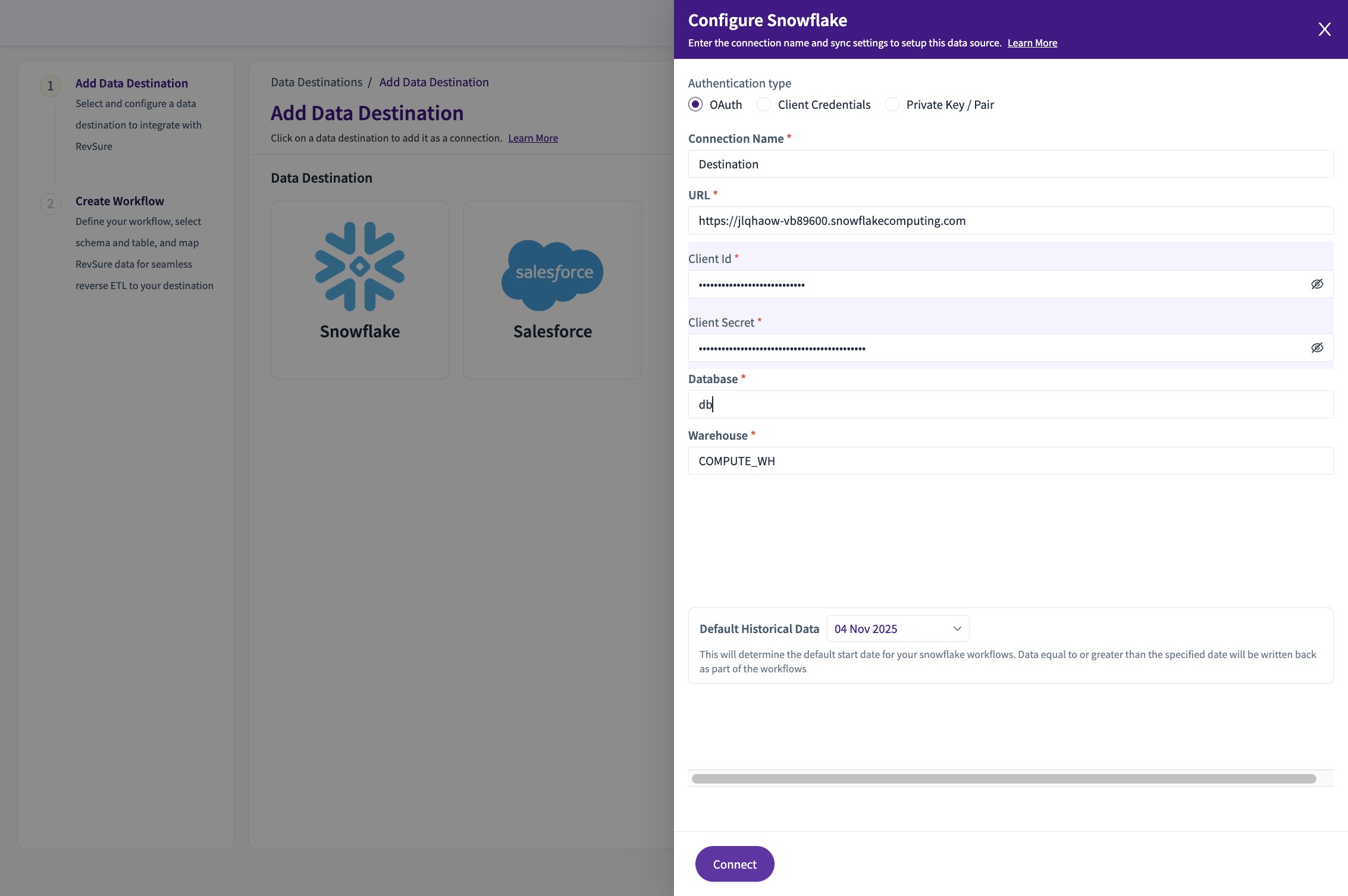
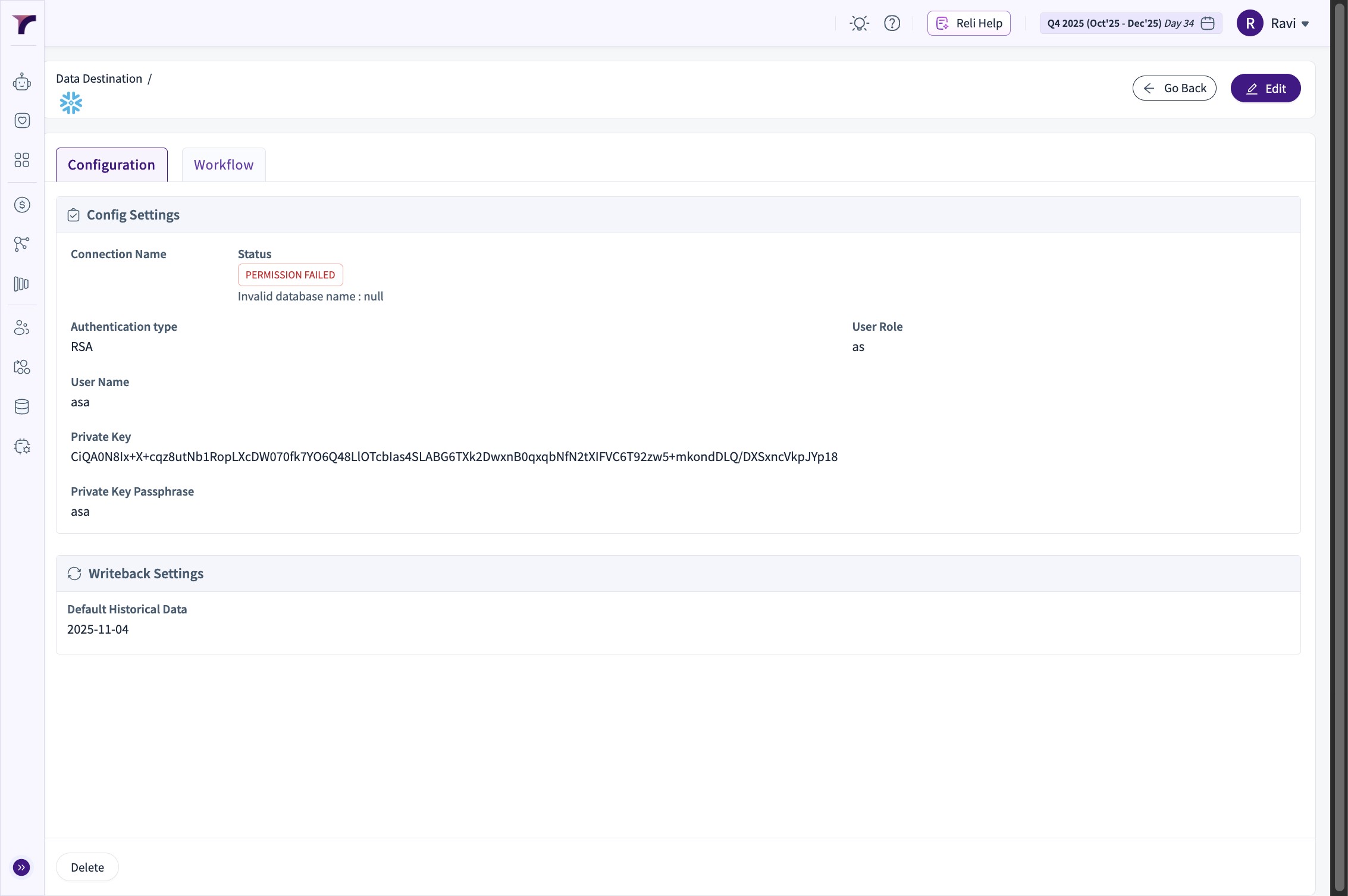
4. Select the Authentication Type and enter details

5. Click "Connect"

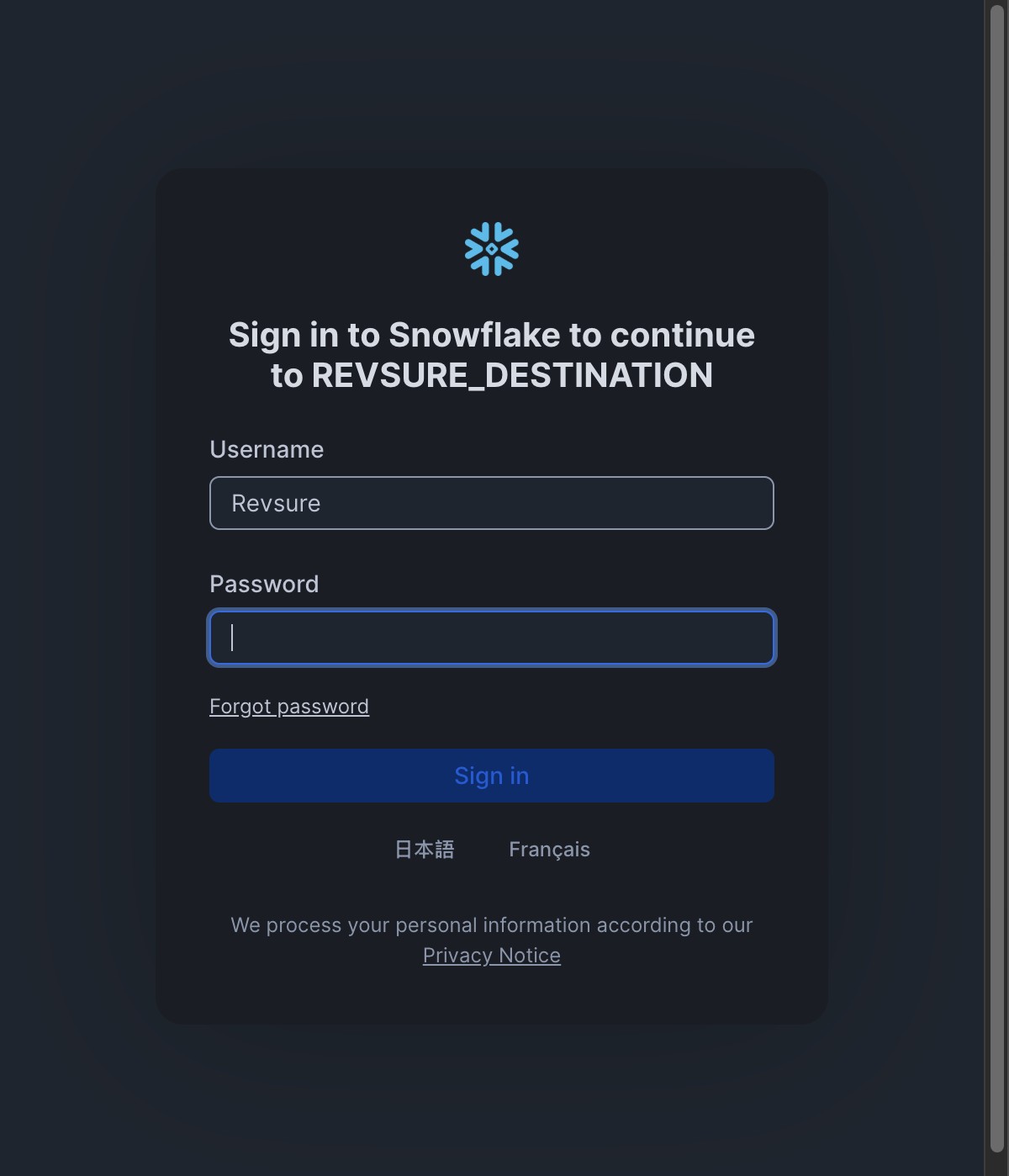
6. A popup window for Authentication with Snowflake would open

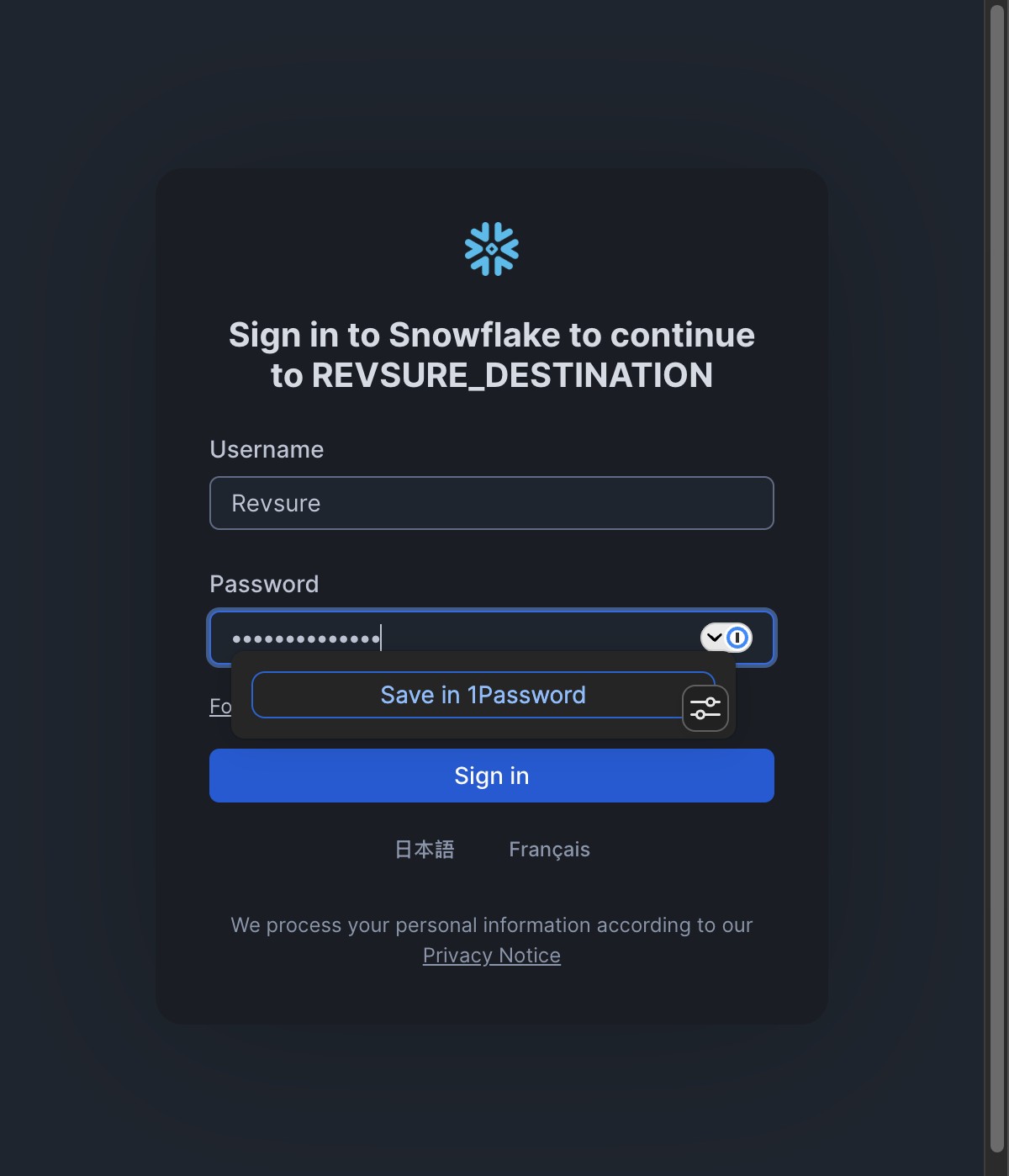
7. Click "Sign in"

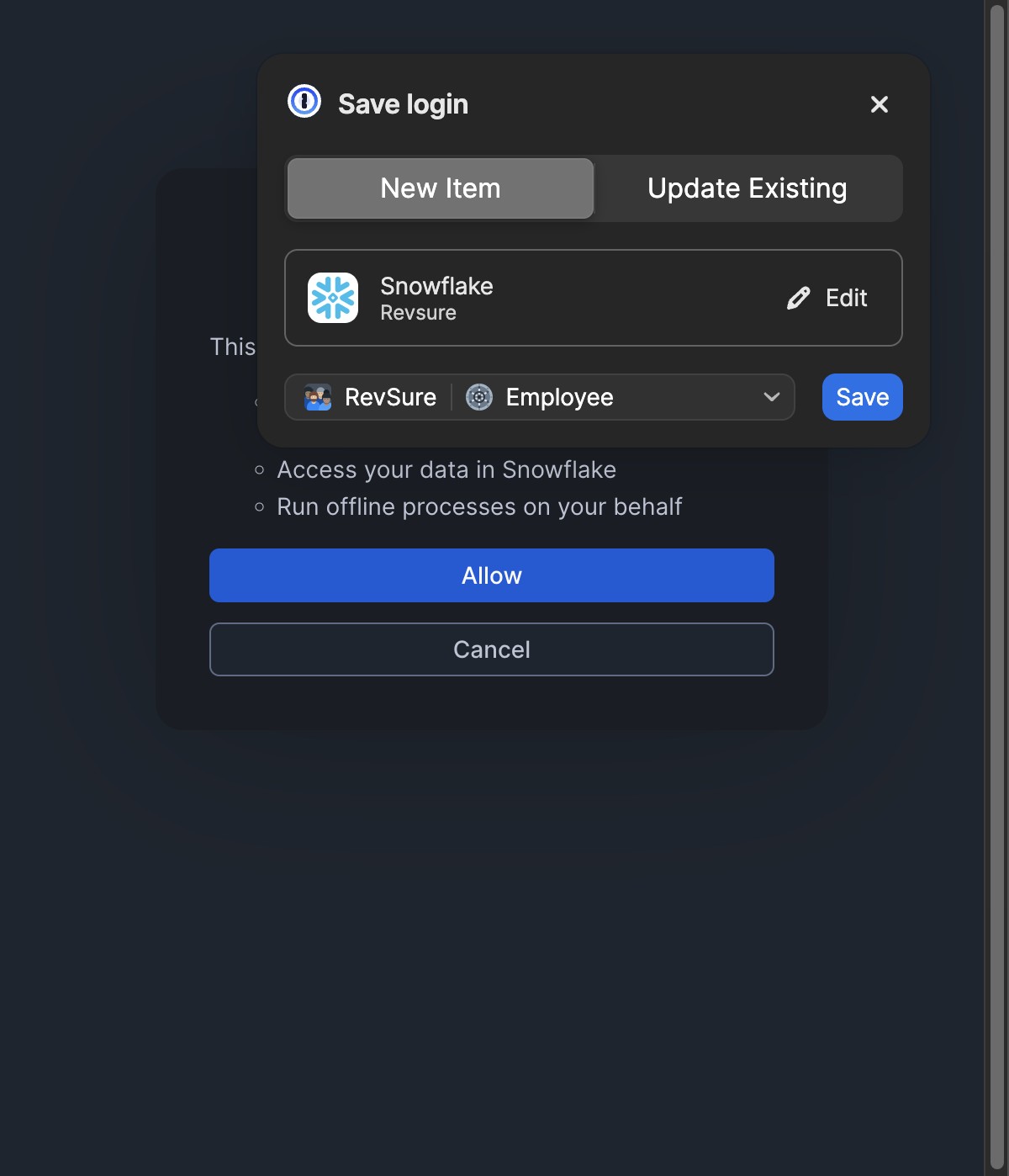
8. Click "Allow"

9. Next, move to Workflow Window and Add Workflows with Syncing