RevSure Google Analytics Integration Implementation Guide
This page is part of RevSure’s Comprehensive FAQs, your all-in-one hub for answers on capabilities, data, security, scalability, configurability, and more. Click here to return to the FAQ home.
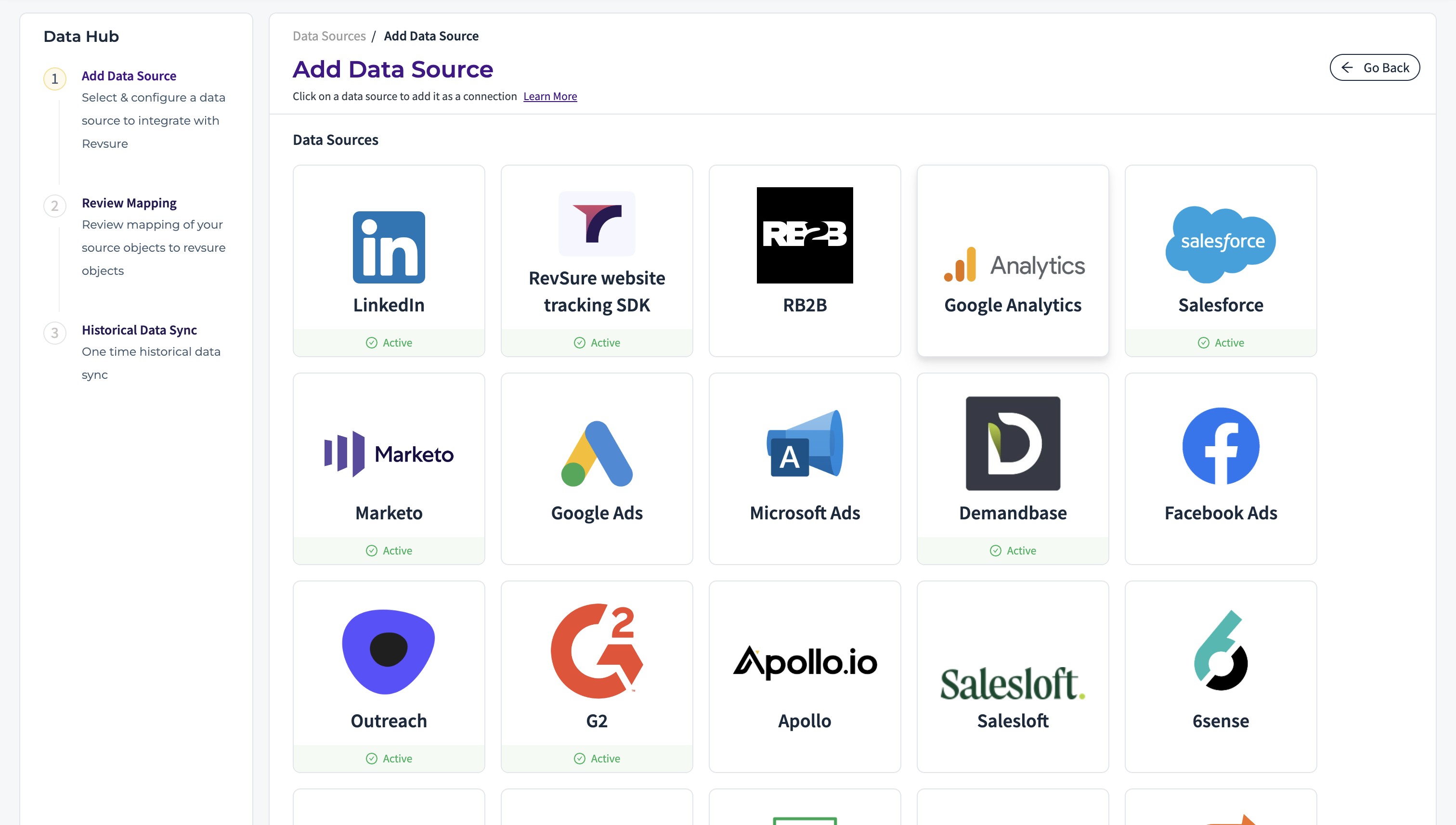
1. Navigate to the data-hub module in the RevSure account. Click on the Add data source button
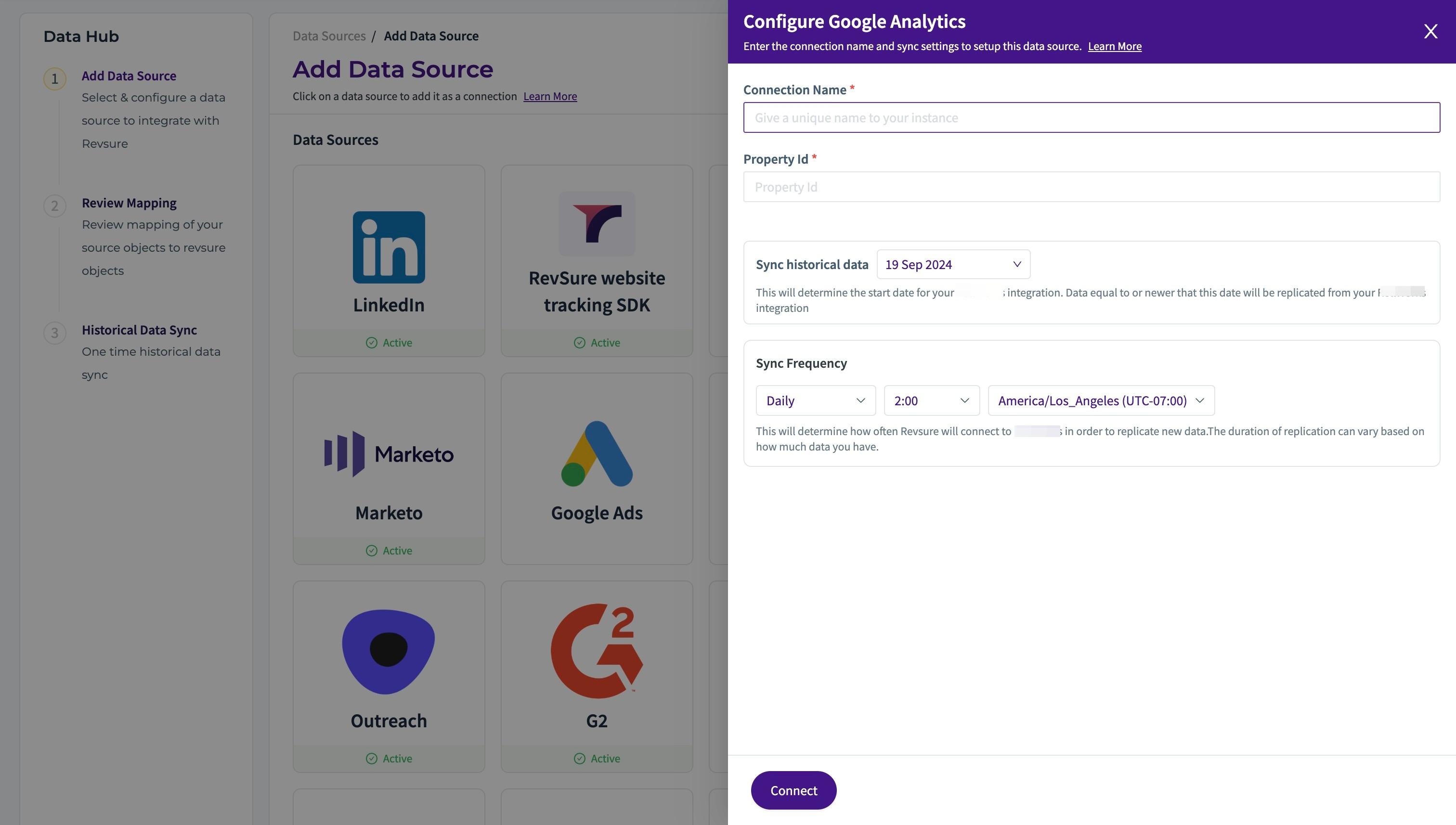
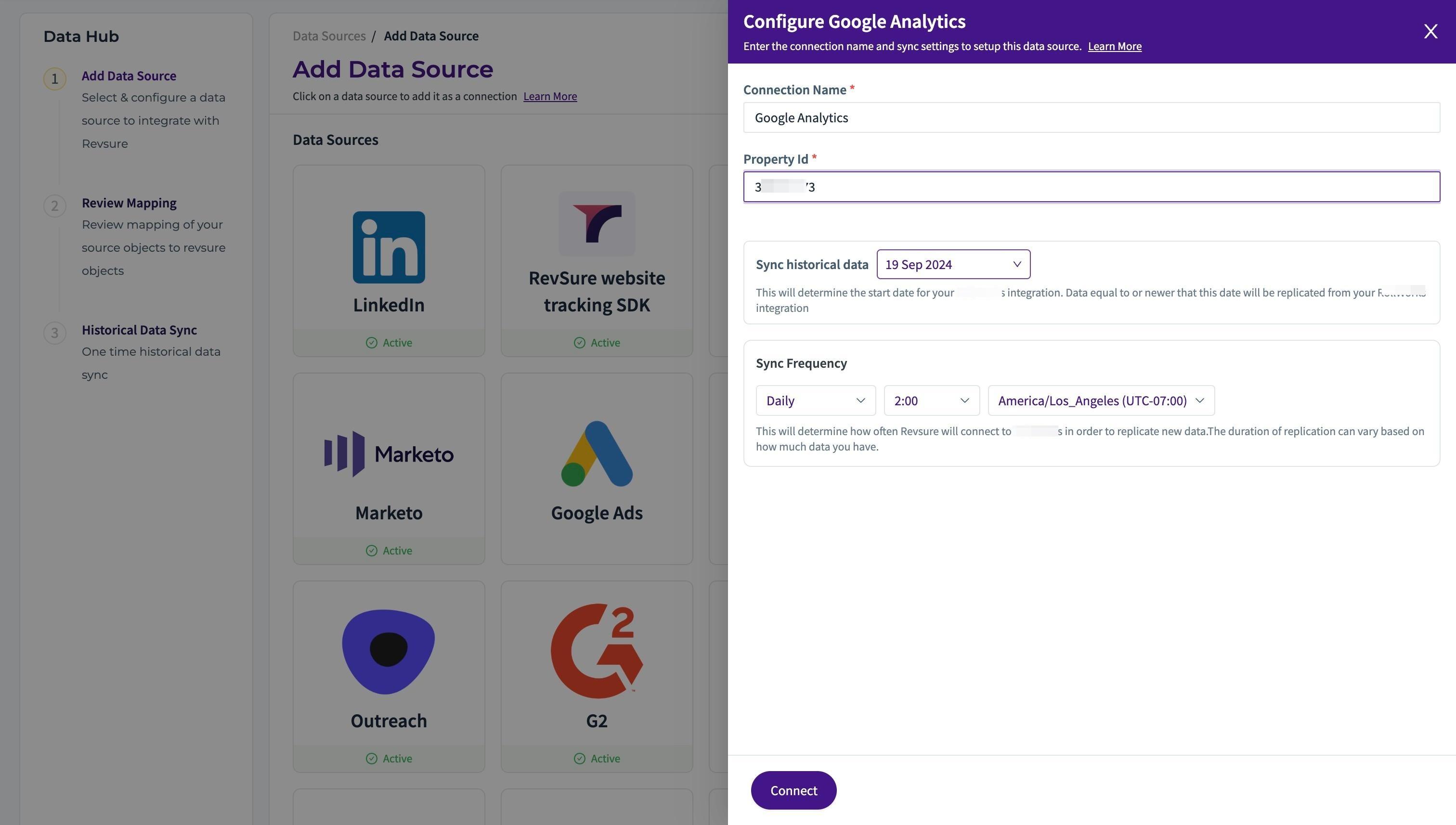
2. Select Google Analytics data source, and it will open a sidebar to configure the connection details
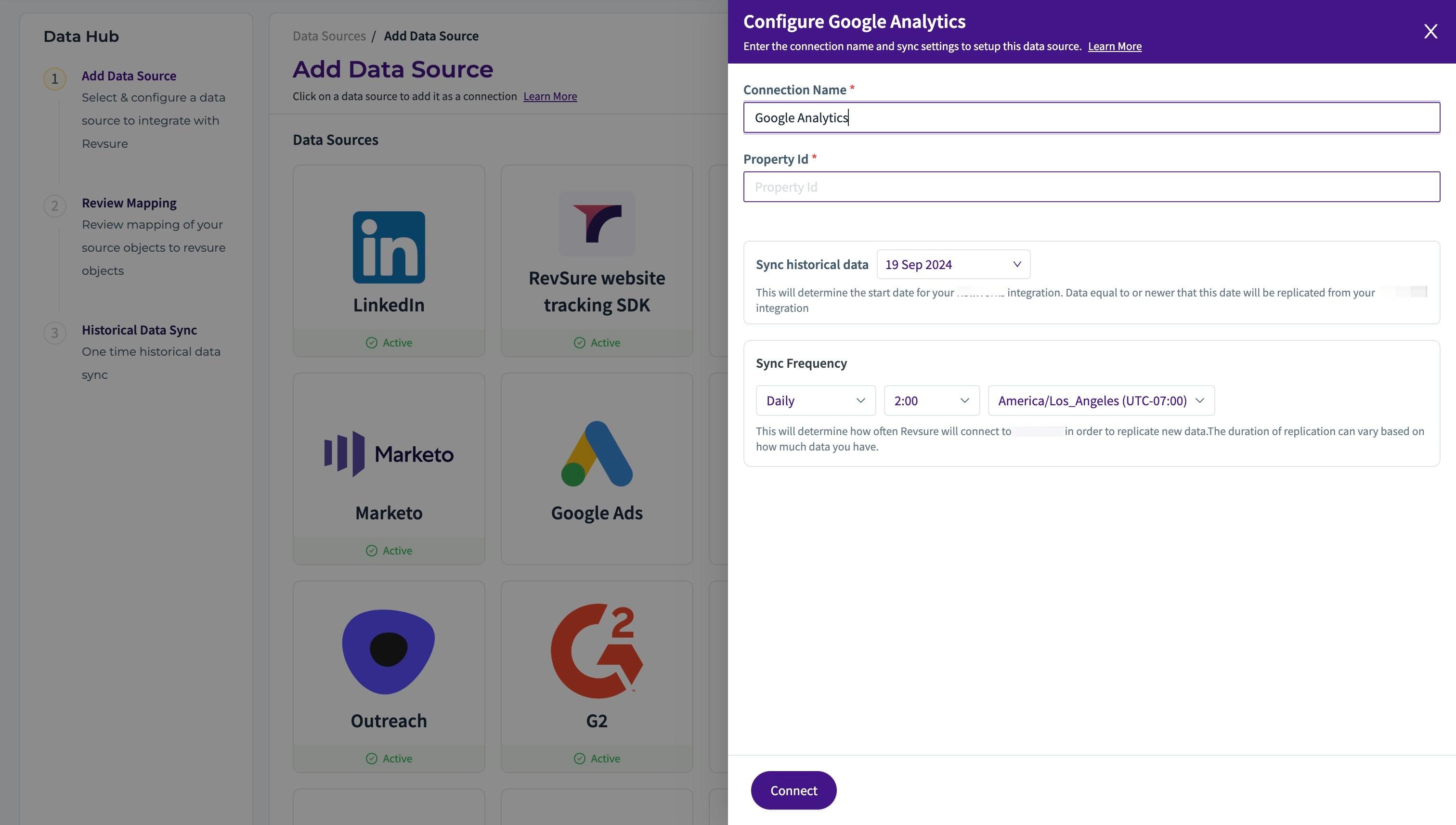
3. Enter a unique connection name to identify the connection
4. Click the "Property Id *" field
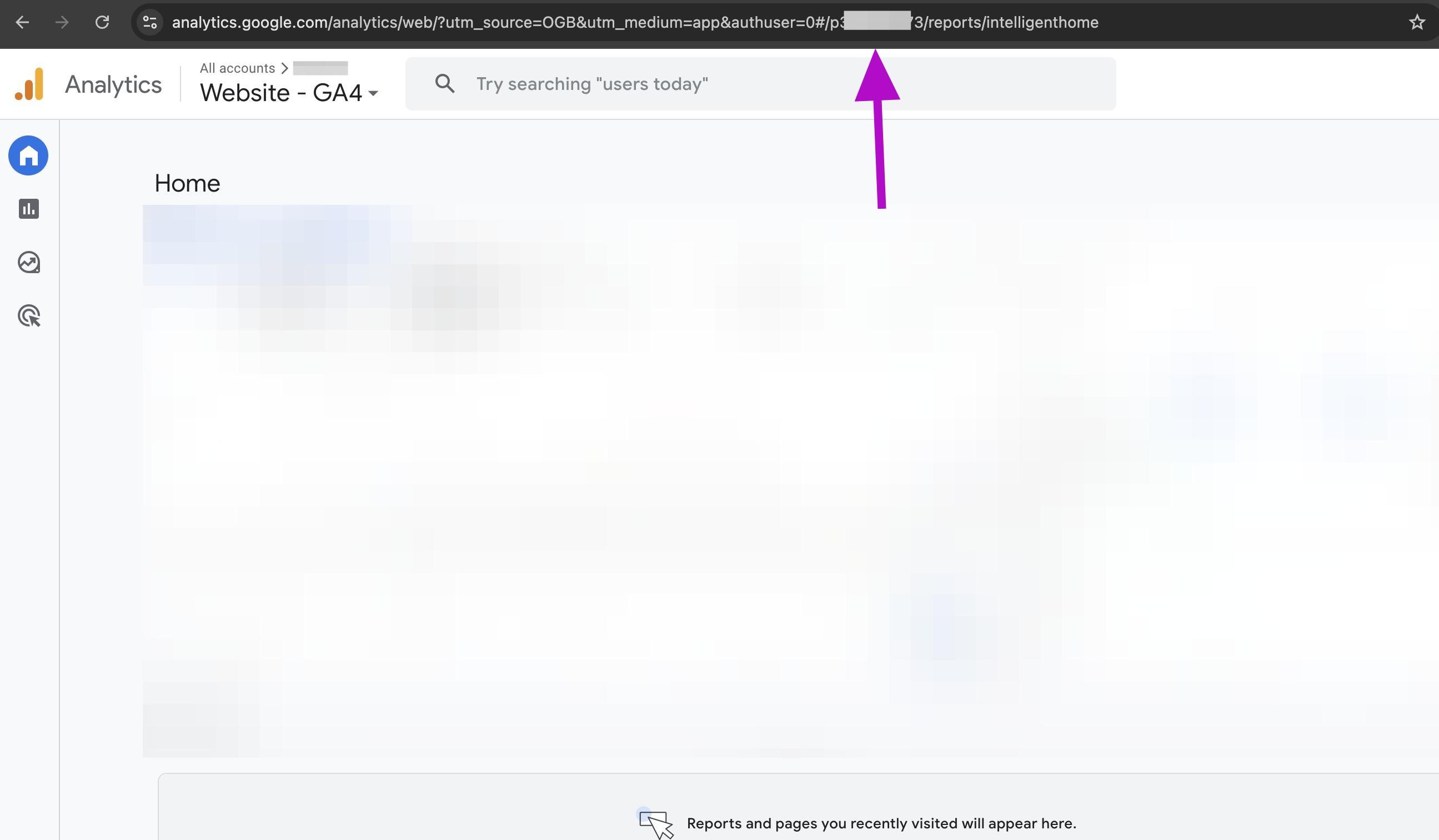
5. Login to your Google Analytics account and Copy the Property ID without "p"
6. You will be able to find the Property ID ("p" will be prefixed) in the UR
7. Select historical date to sync from
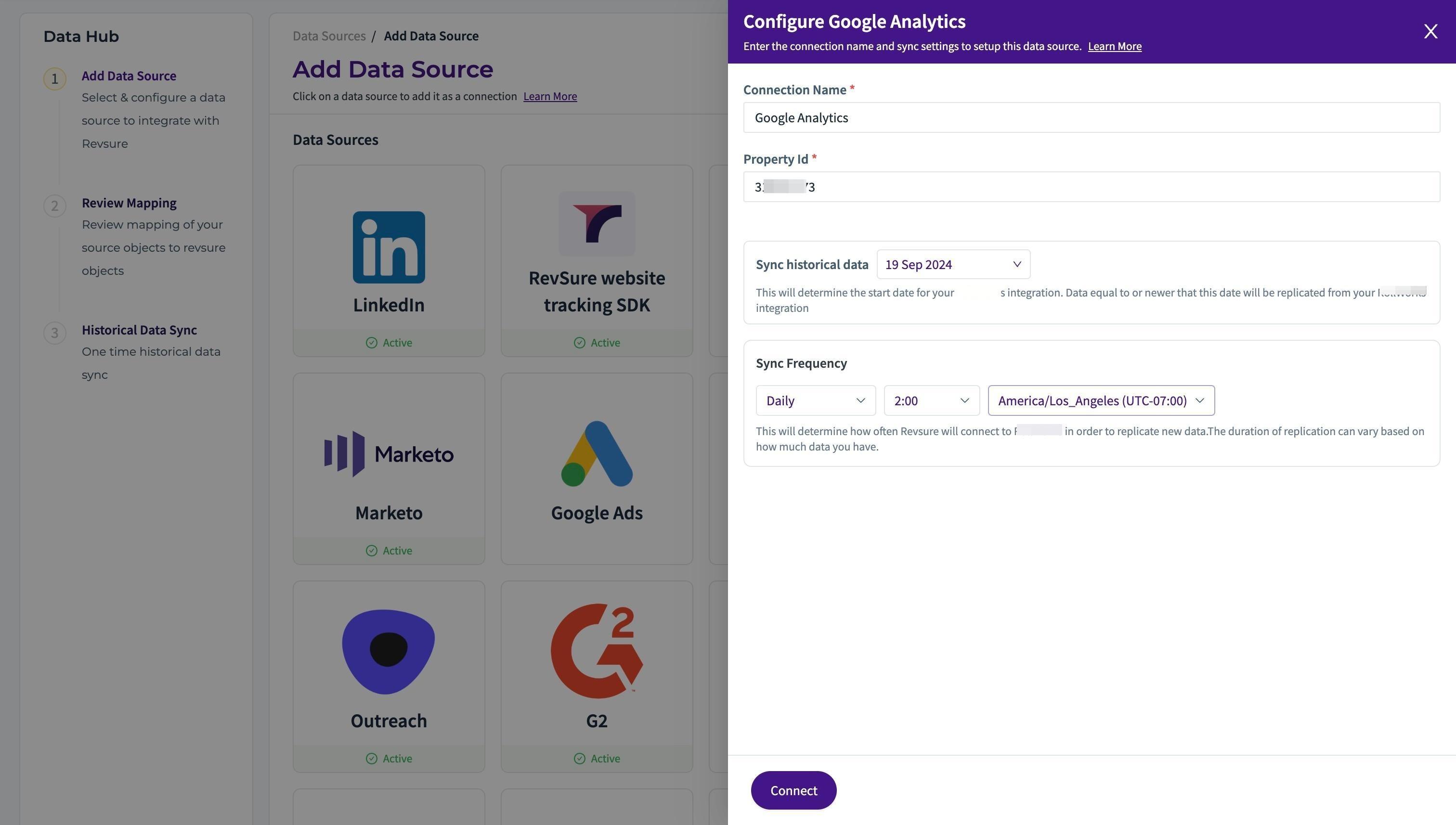
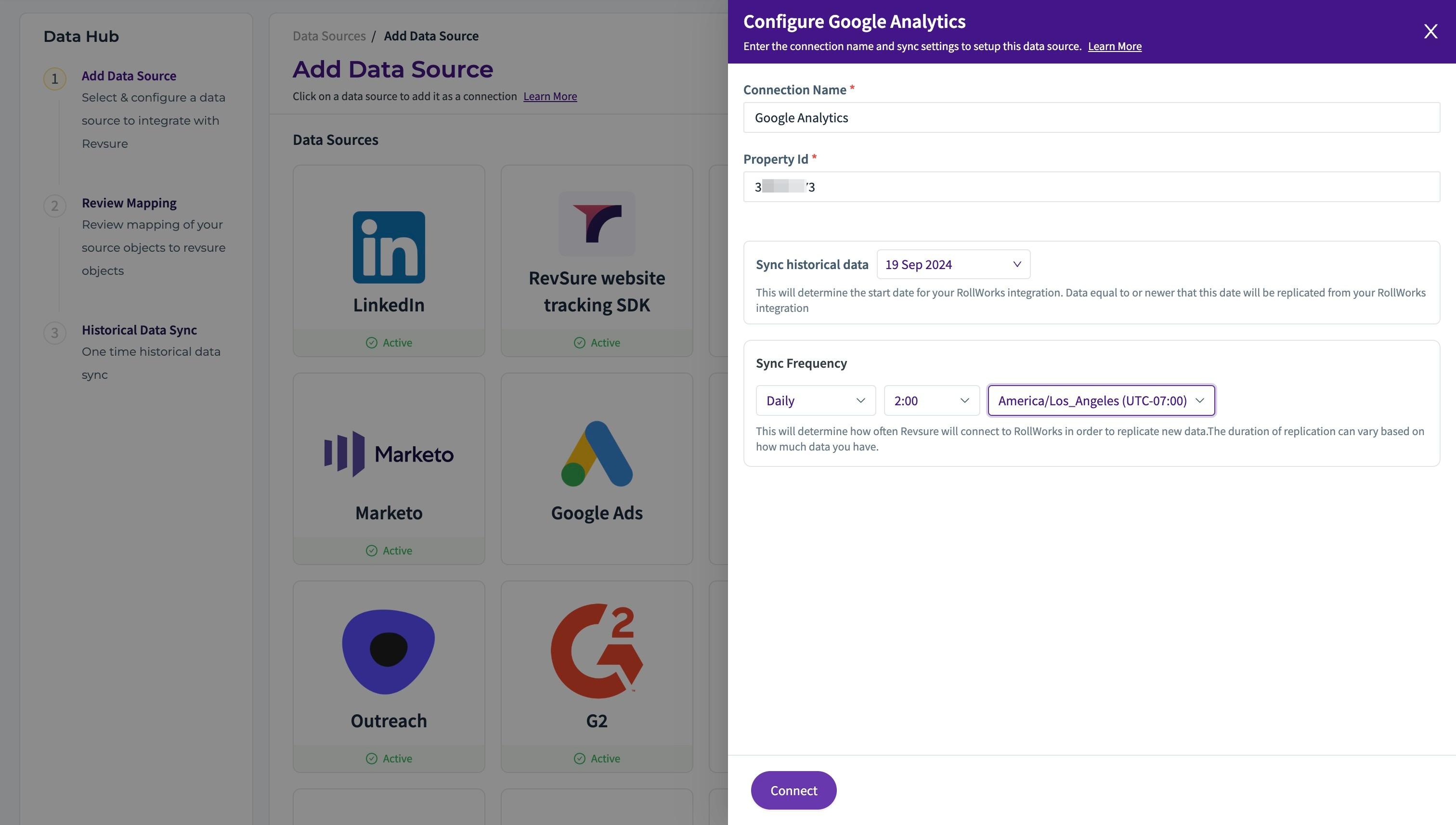
8. Select sync frequency, time and timezone to trigger the sync
9. Click "Connect"
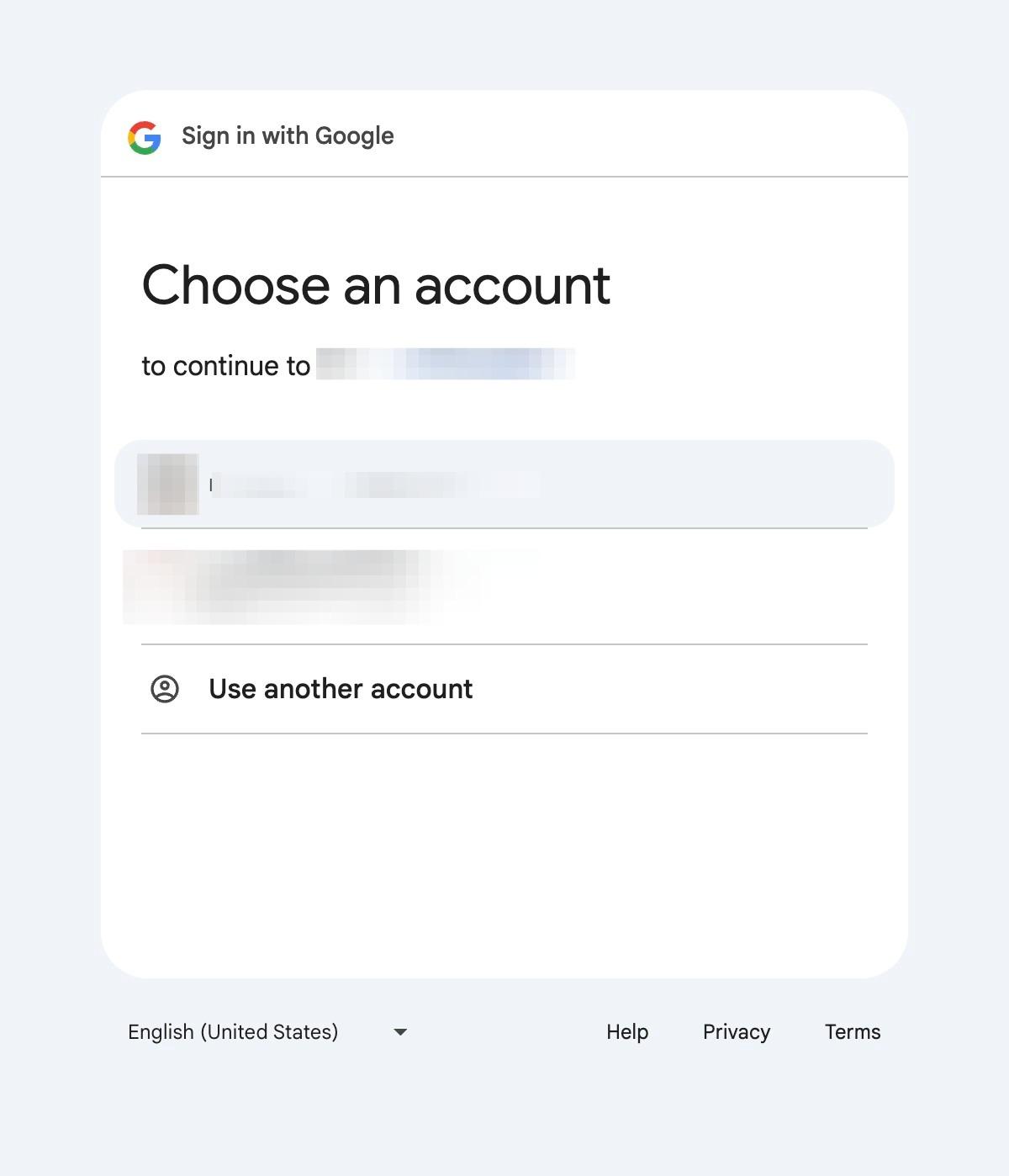
10. Login using your credentials in Google Analytics SSO pop up
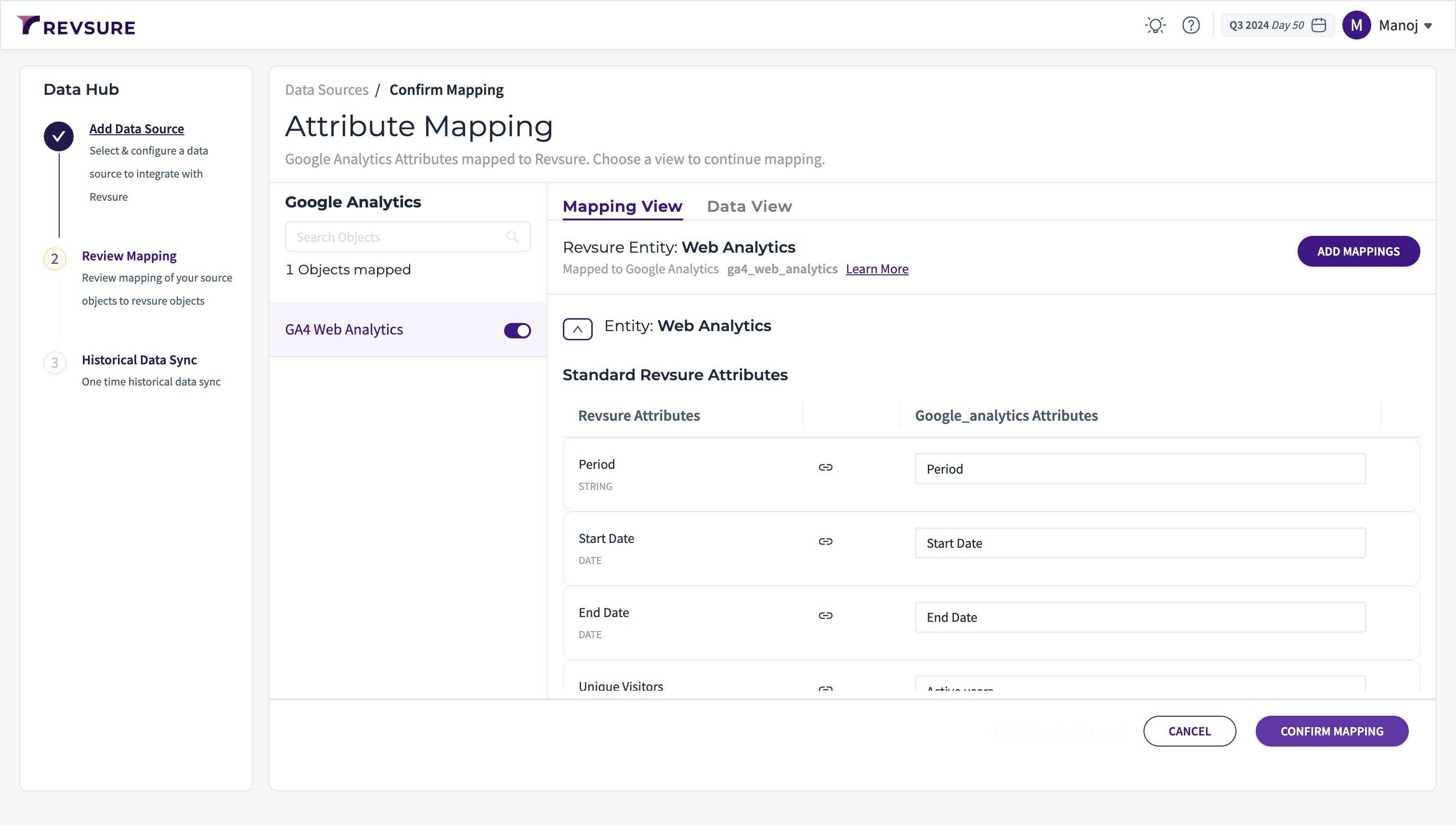
11. Click "CONFIRM MAPPING" to confirm mapping
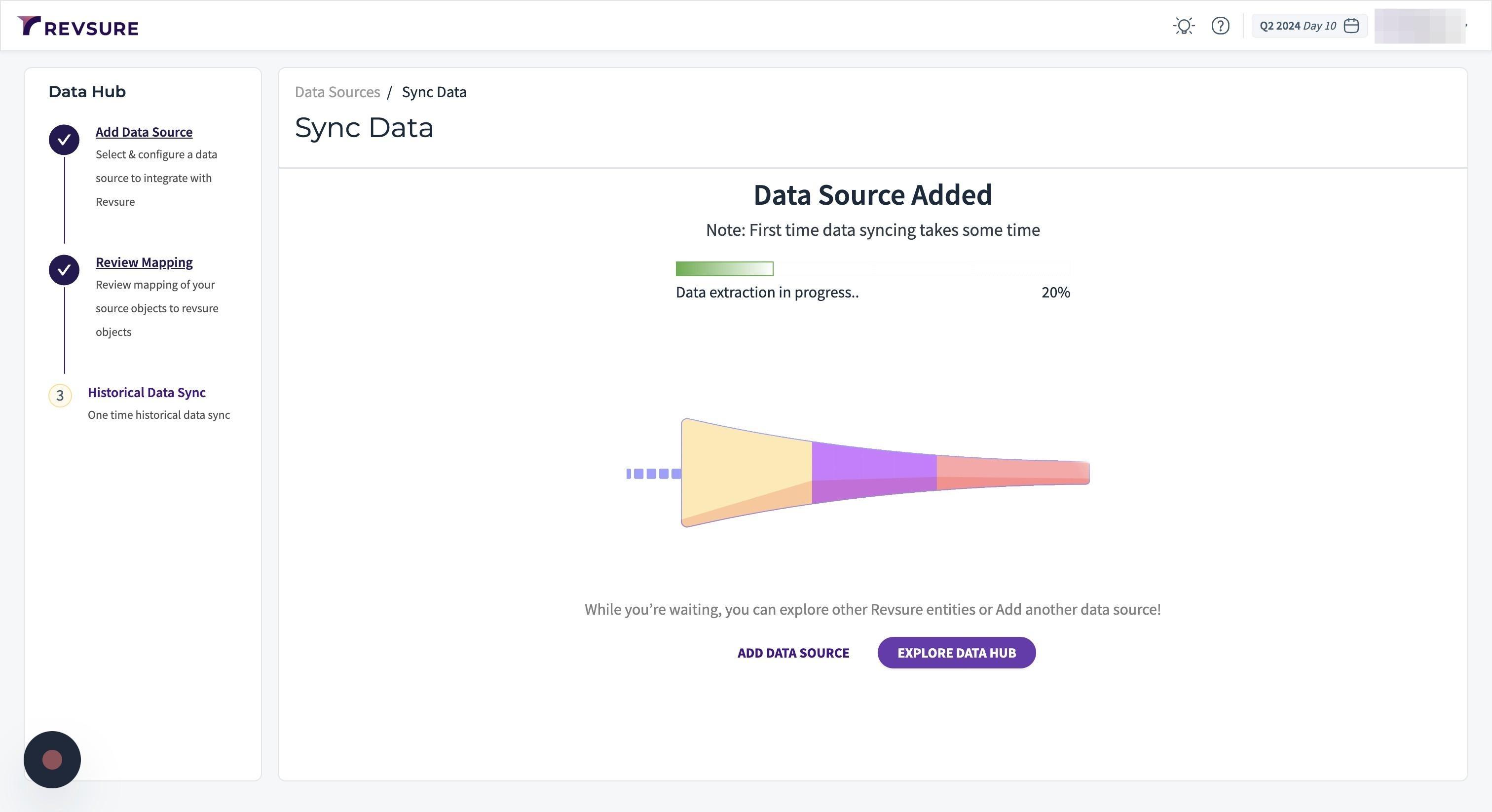
12. Data source will be added, and you will be able to view sync status