This page is part of RevSure’s Comprehensive FAQs, your all-in-one hub for answers on capabilities, data, security, scalability, configurability, and more. Click here to return to the FAQ home.
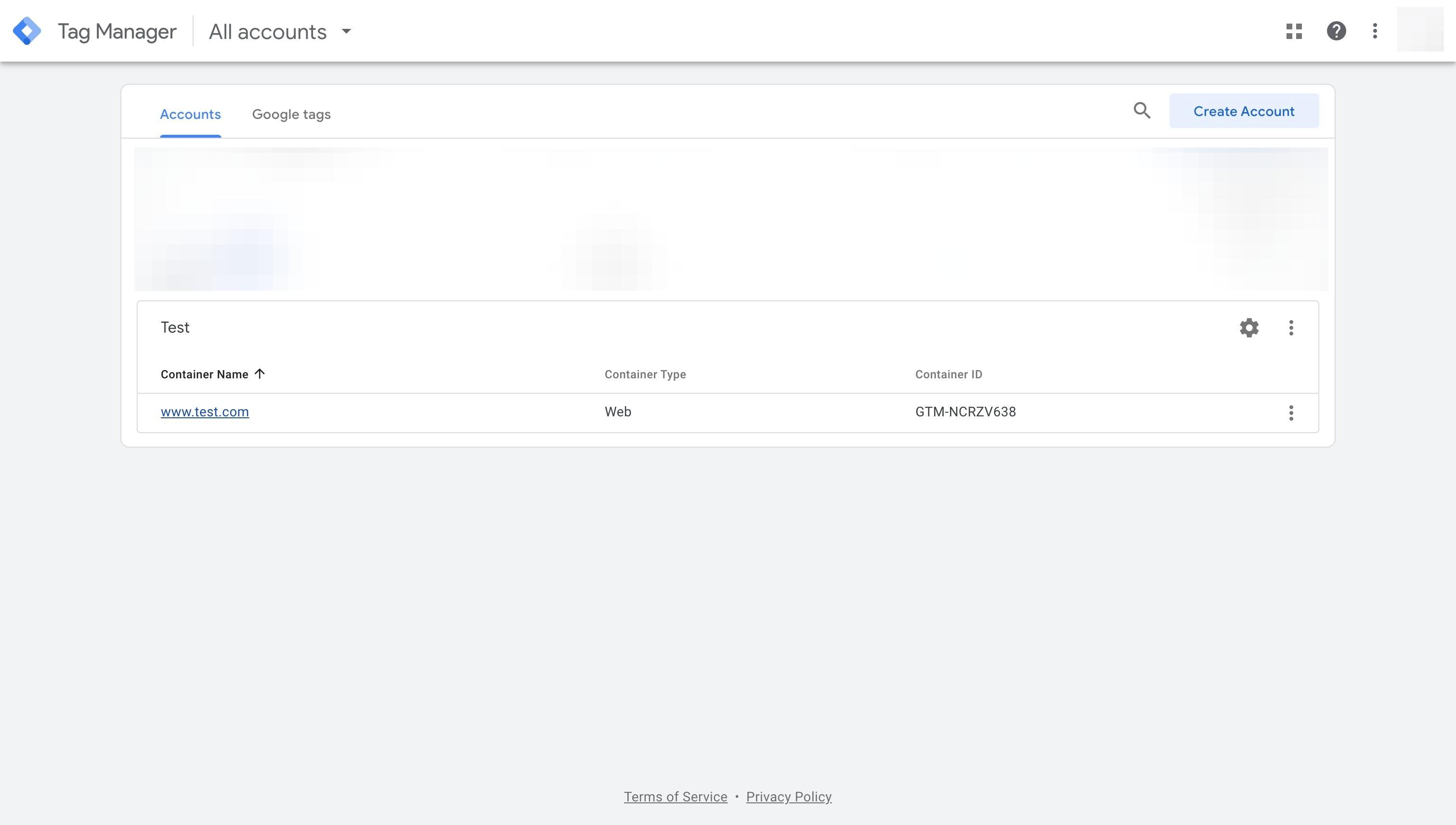
1. Navigate to Google Tag Manager
2. Click on the account that you want to add RevSure.AI tag
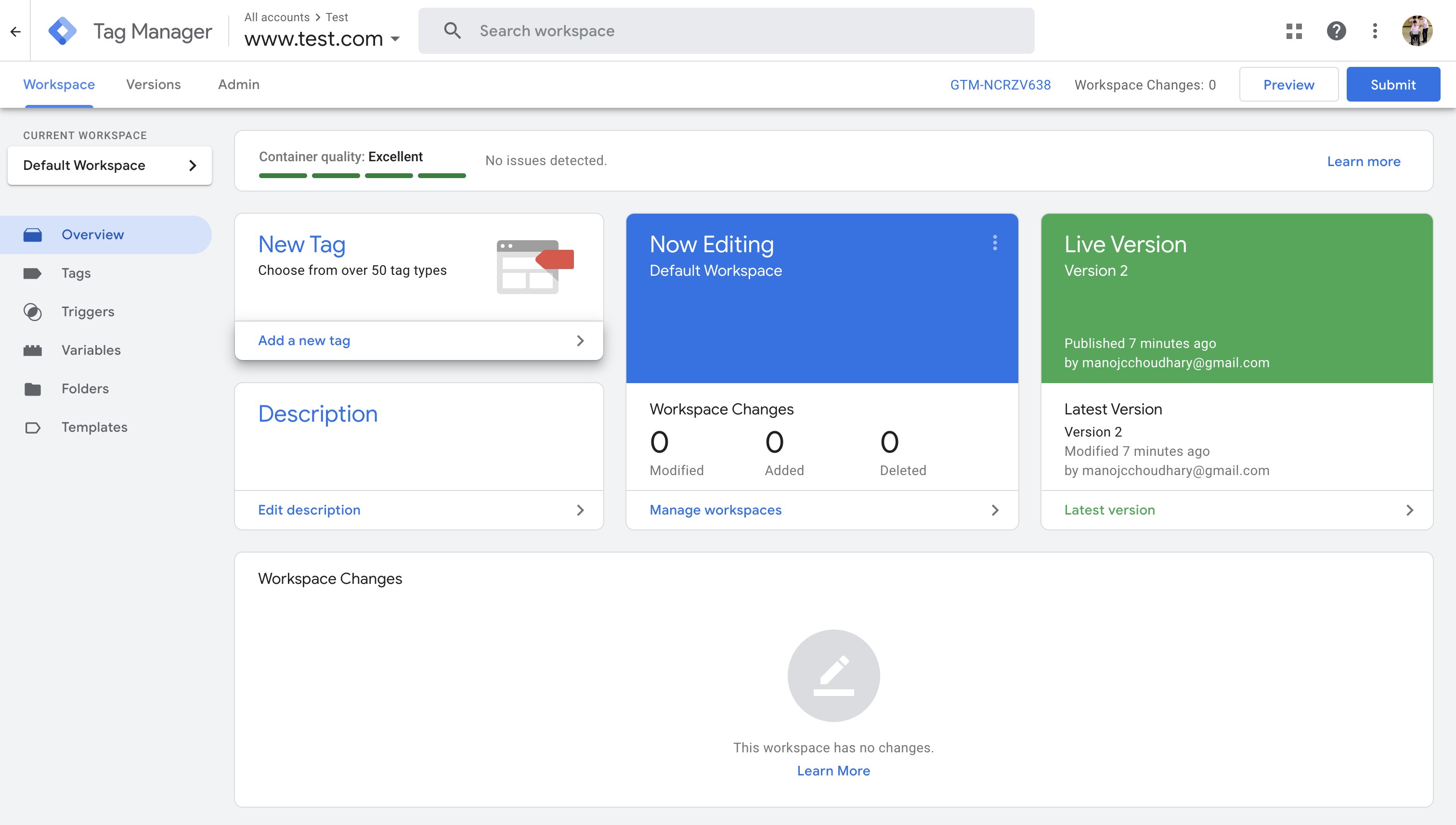
3. Click "Add a new tag"
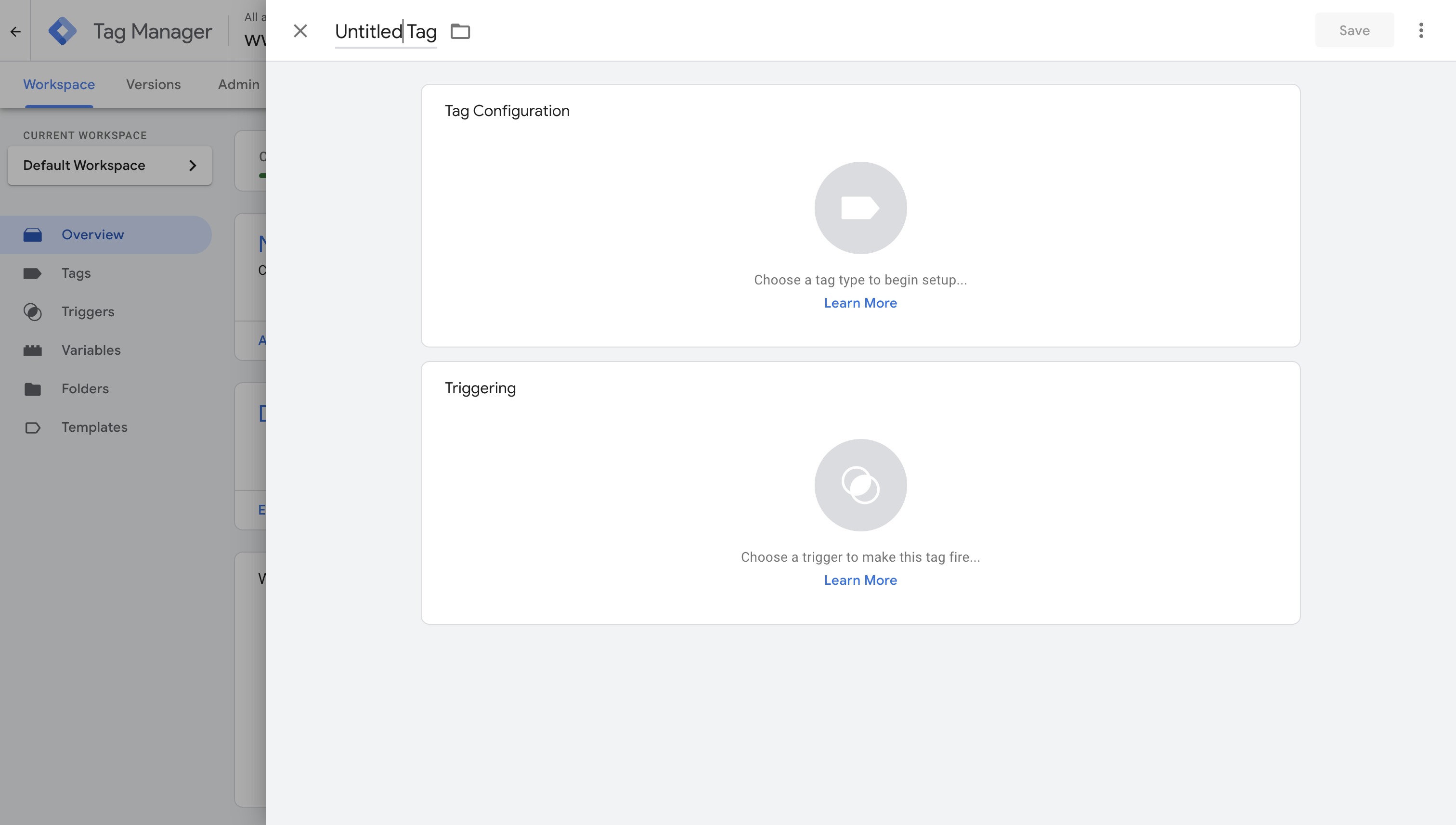
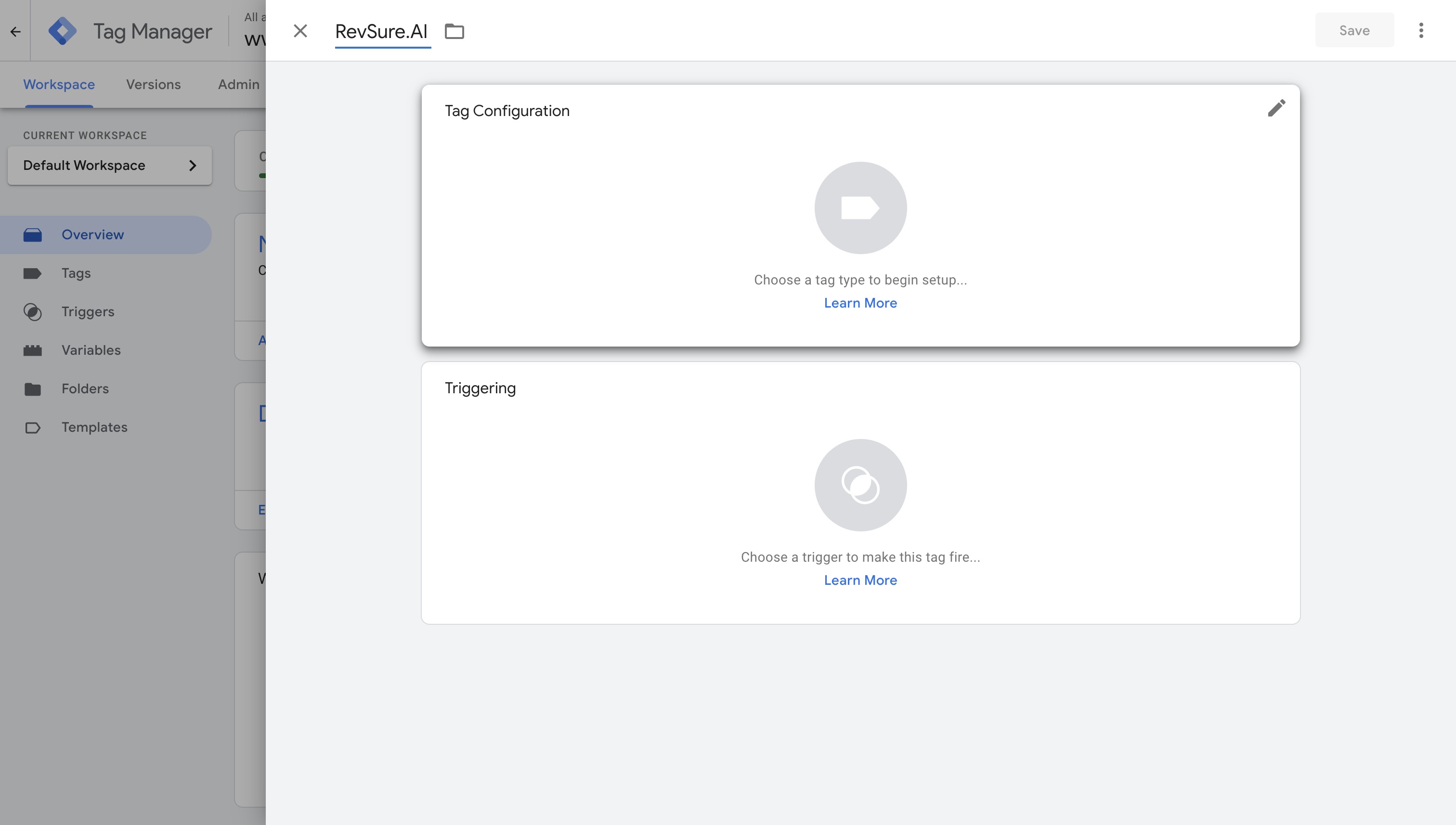
4. Type "RevSure.AI" for Tag Name
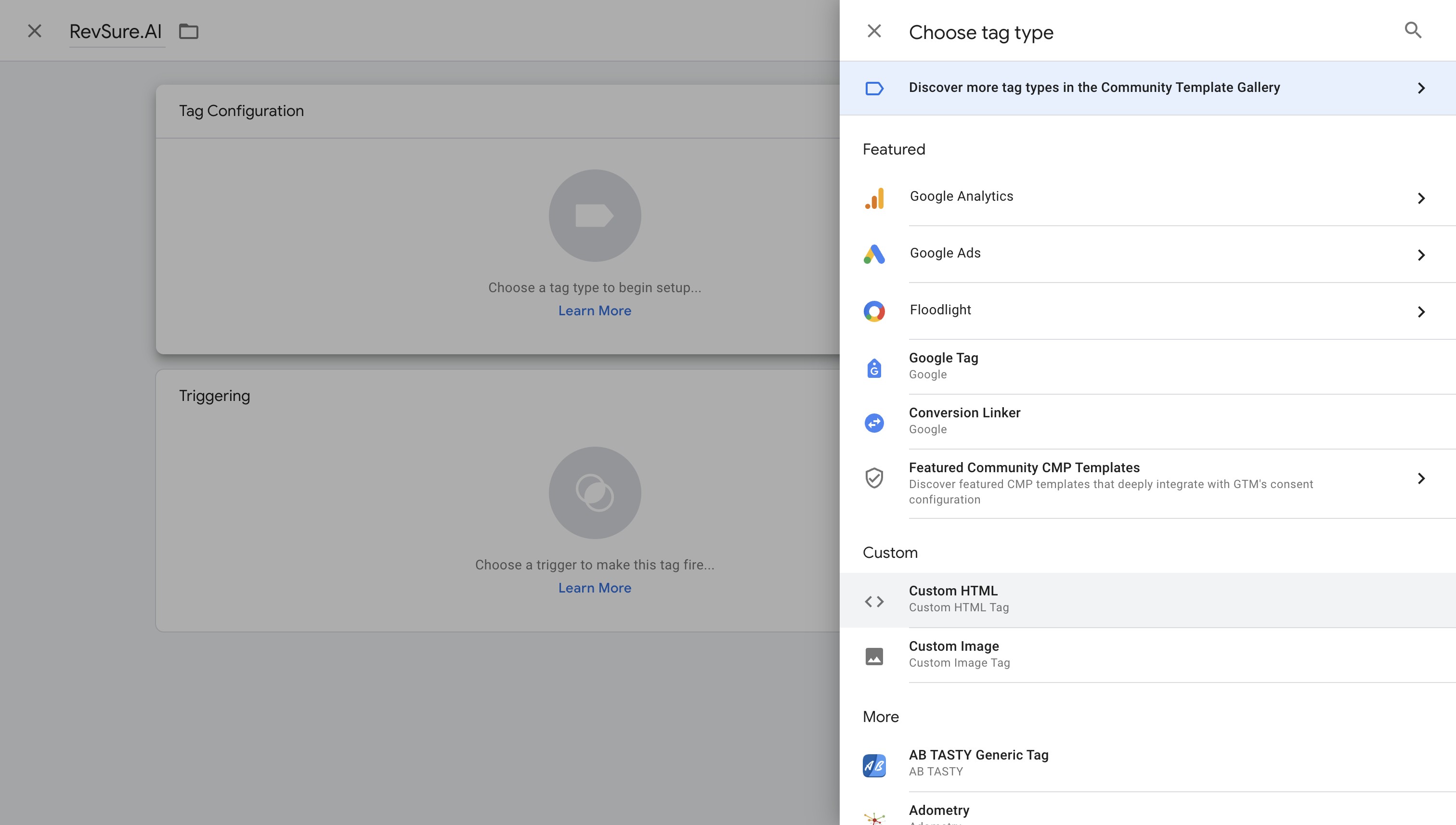
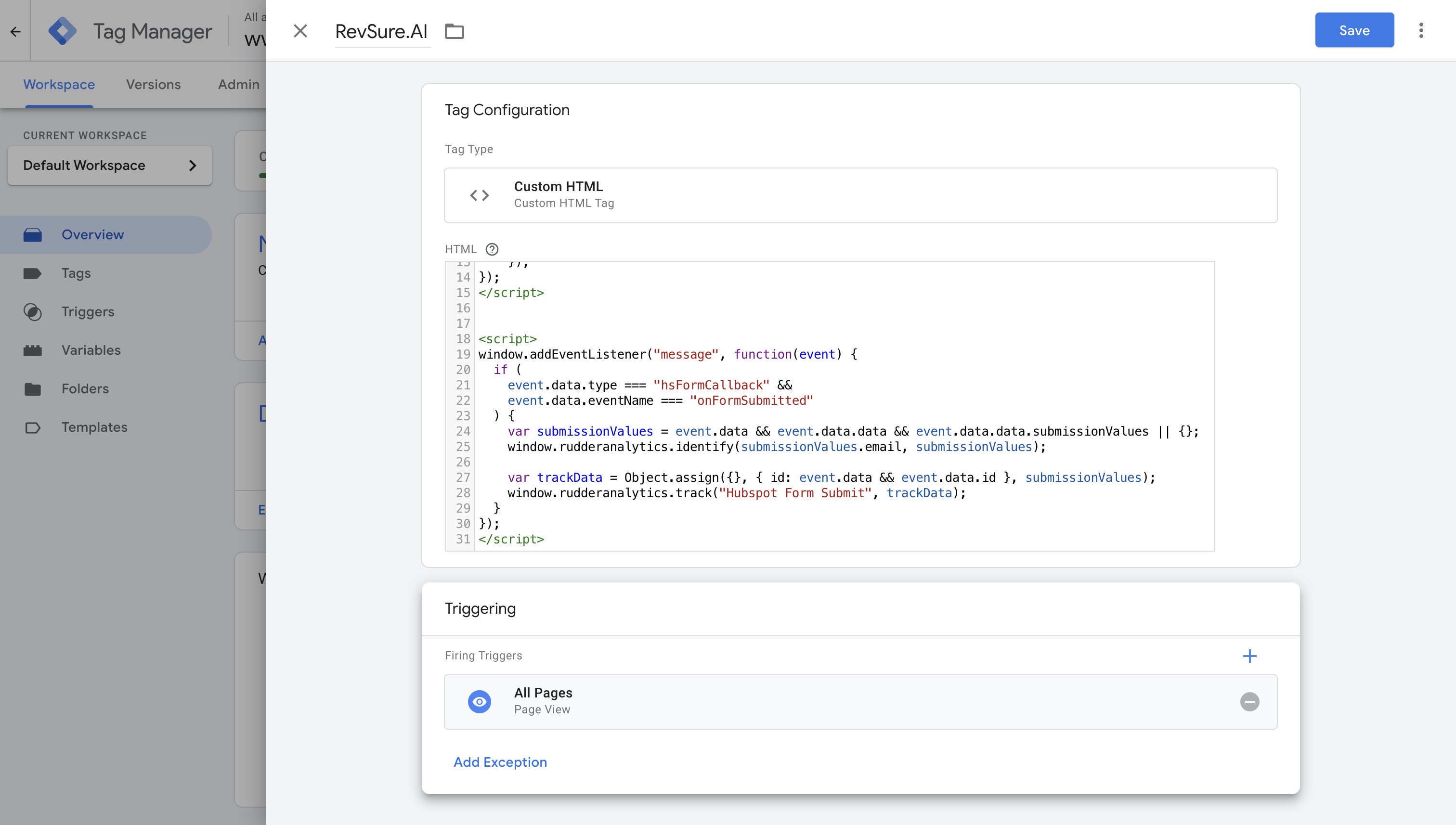
5. Click on Tag Configuration and it will open sidebar
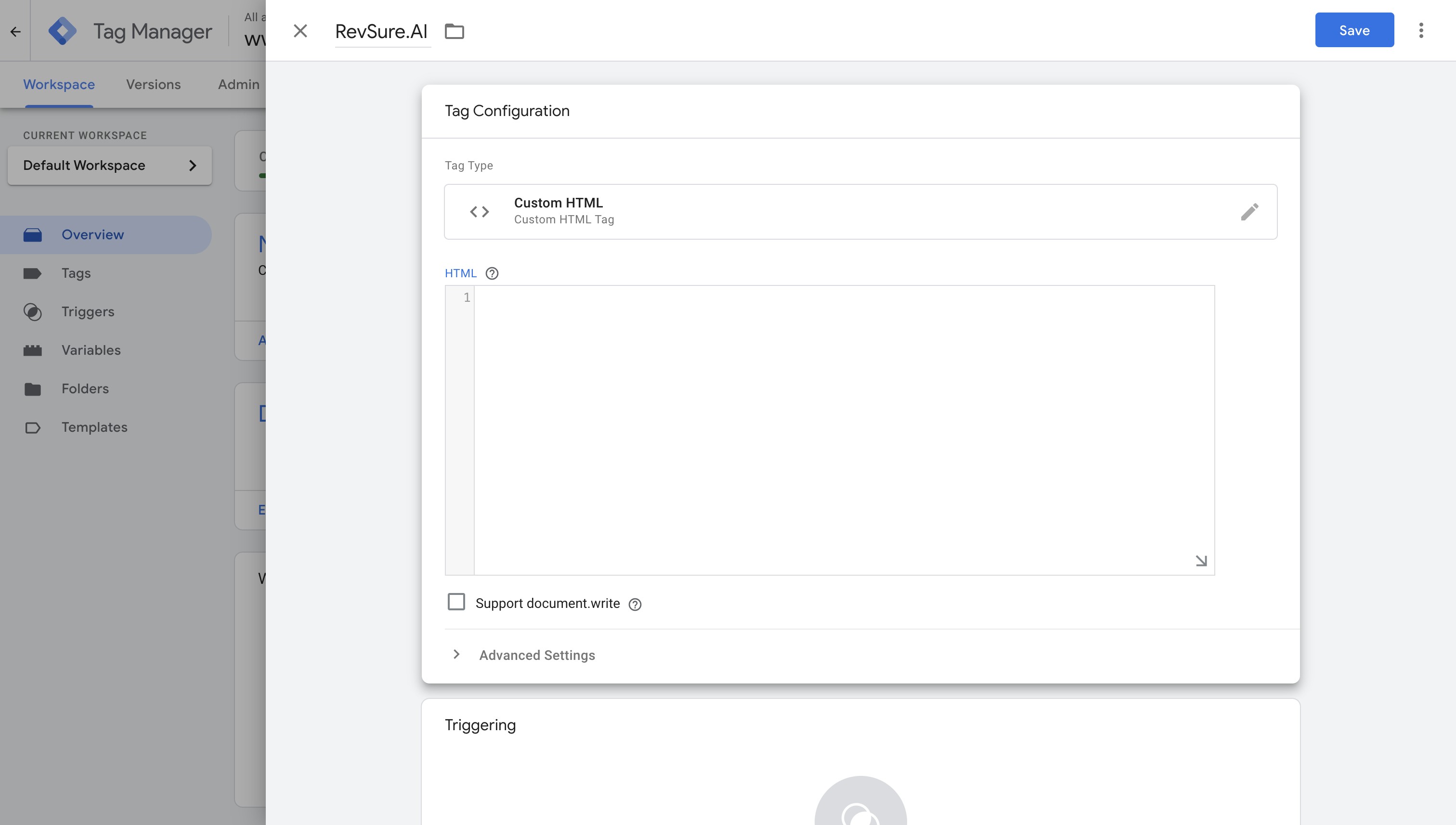
6. Click "Custom HTML Tag"
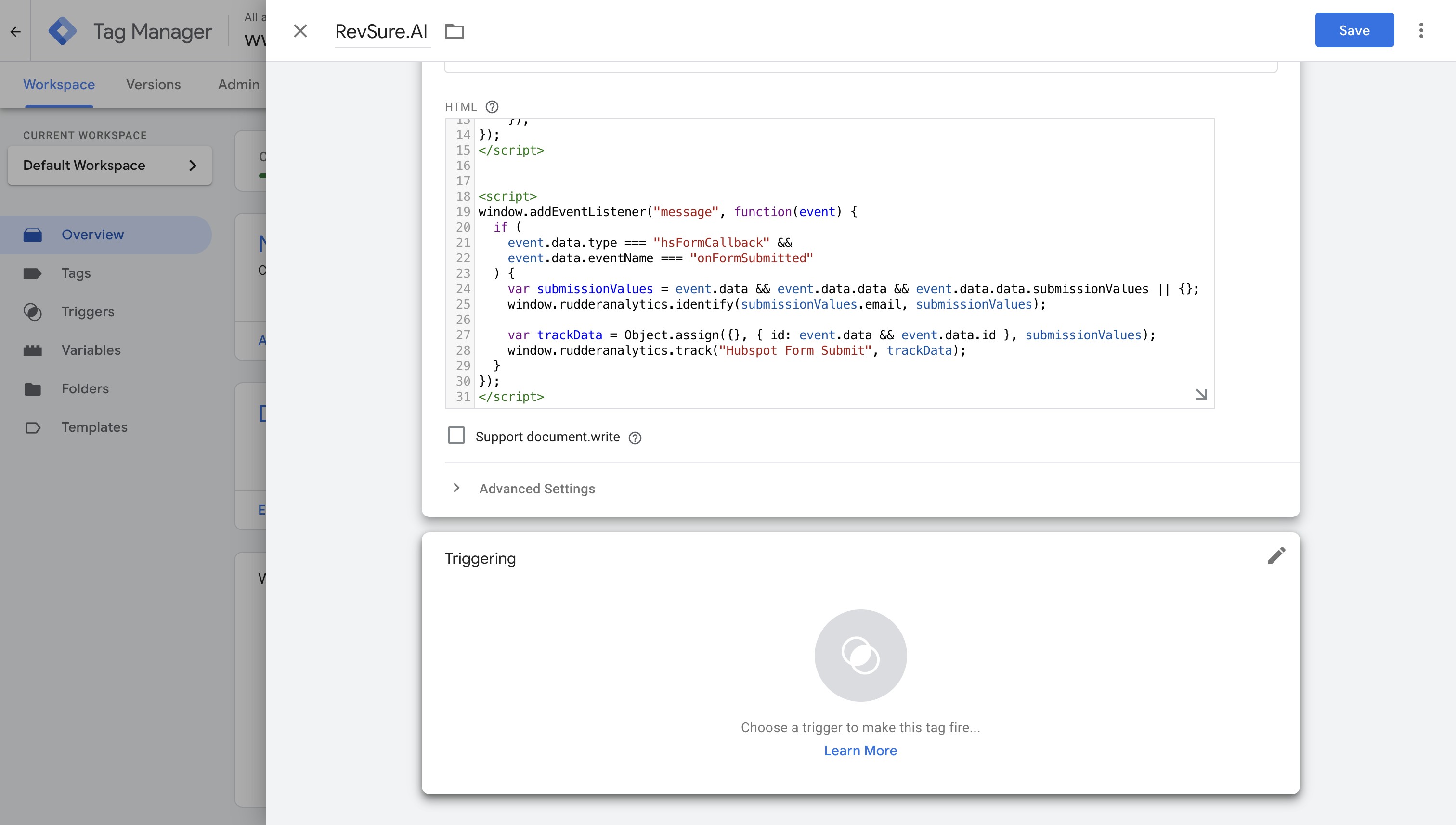
7. Copy and paste the script's provided by RevSure.AI team
Tracking Pixel
HubSpot form submission
Marketo form submission
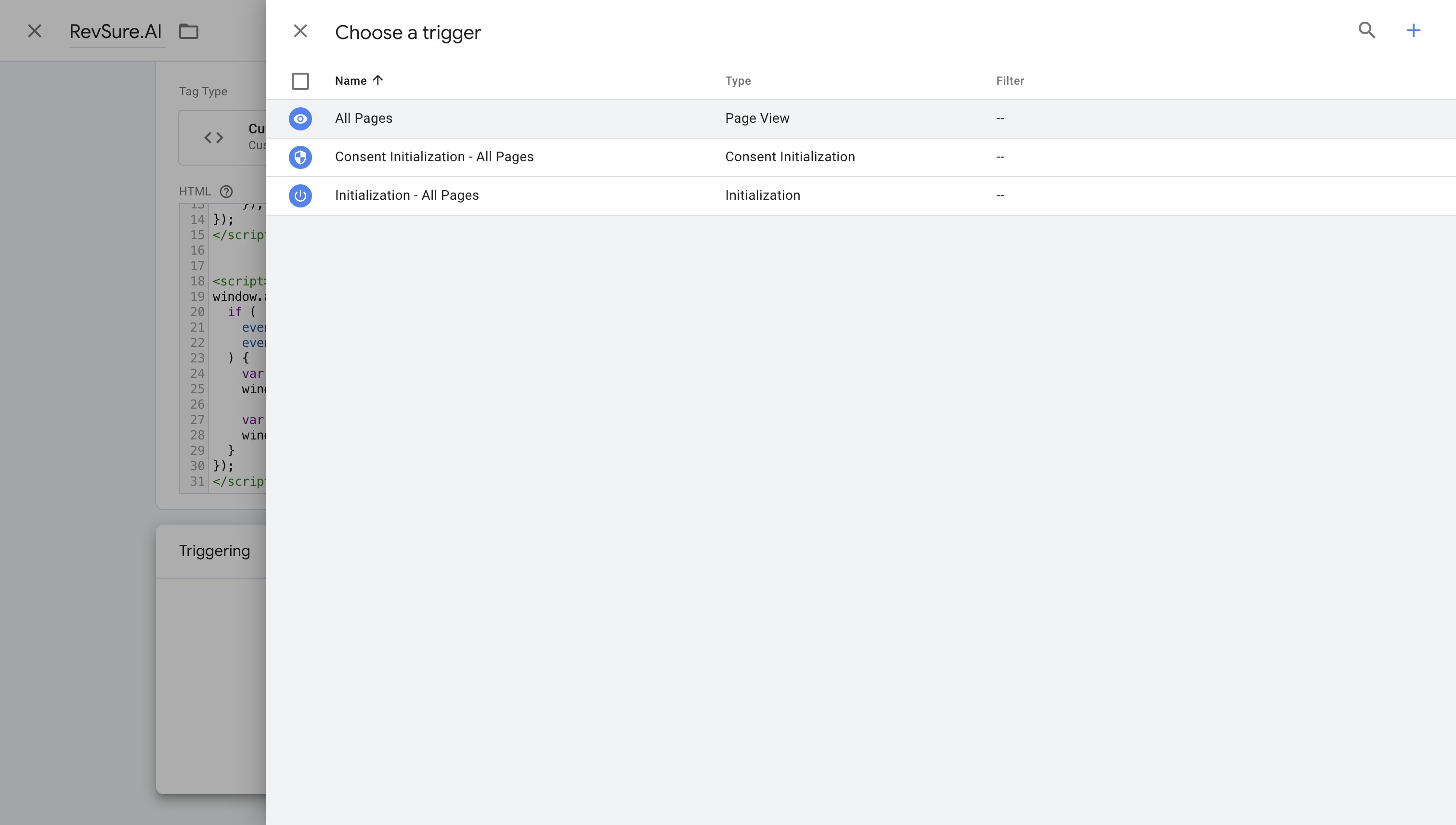
8. Click here on Triggering card to set up triggers
9. Click "All Pages"
10. Click "Save"
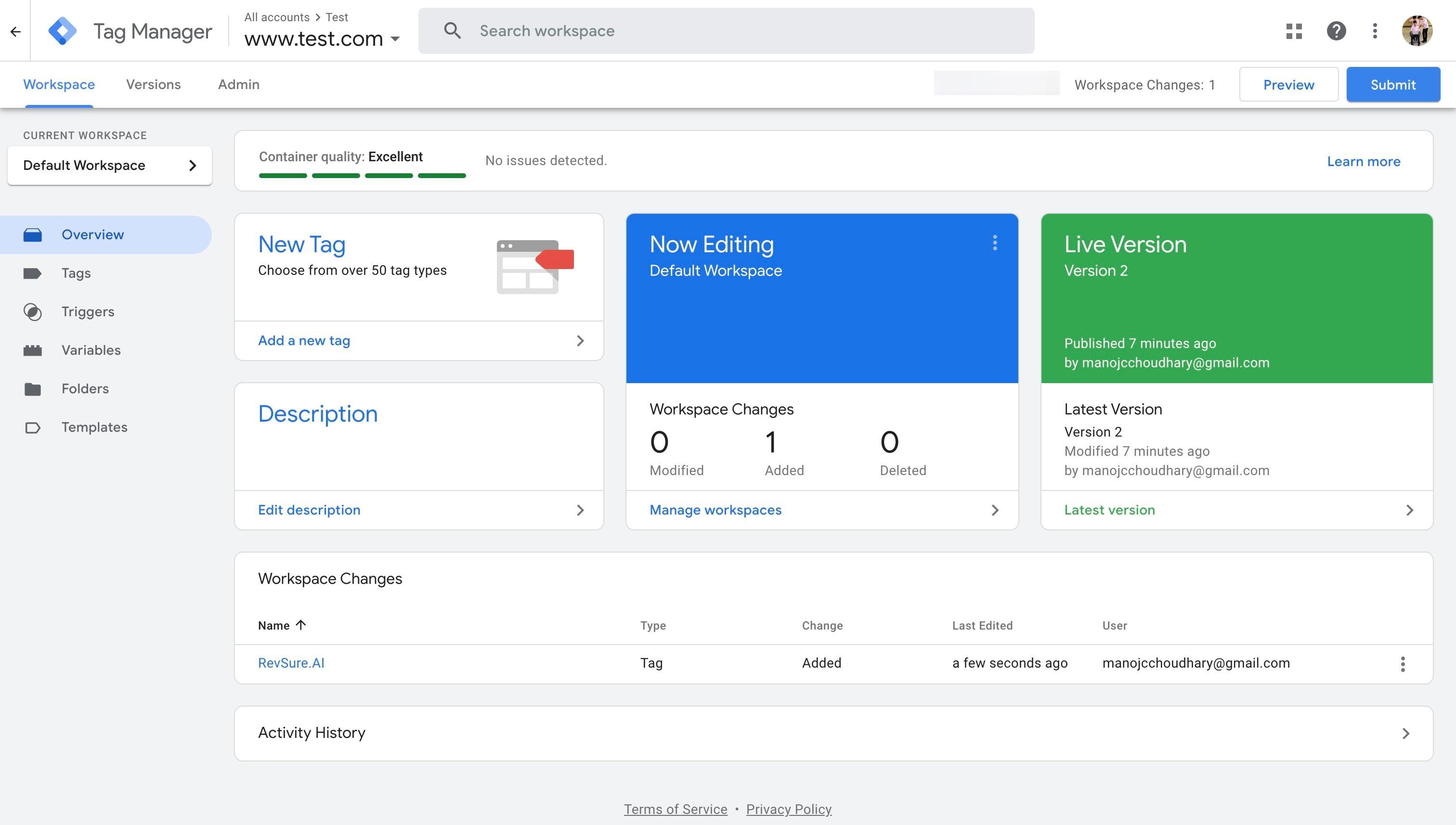
11. Click "Submit" to publish the changes
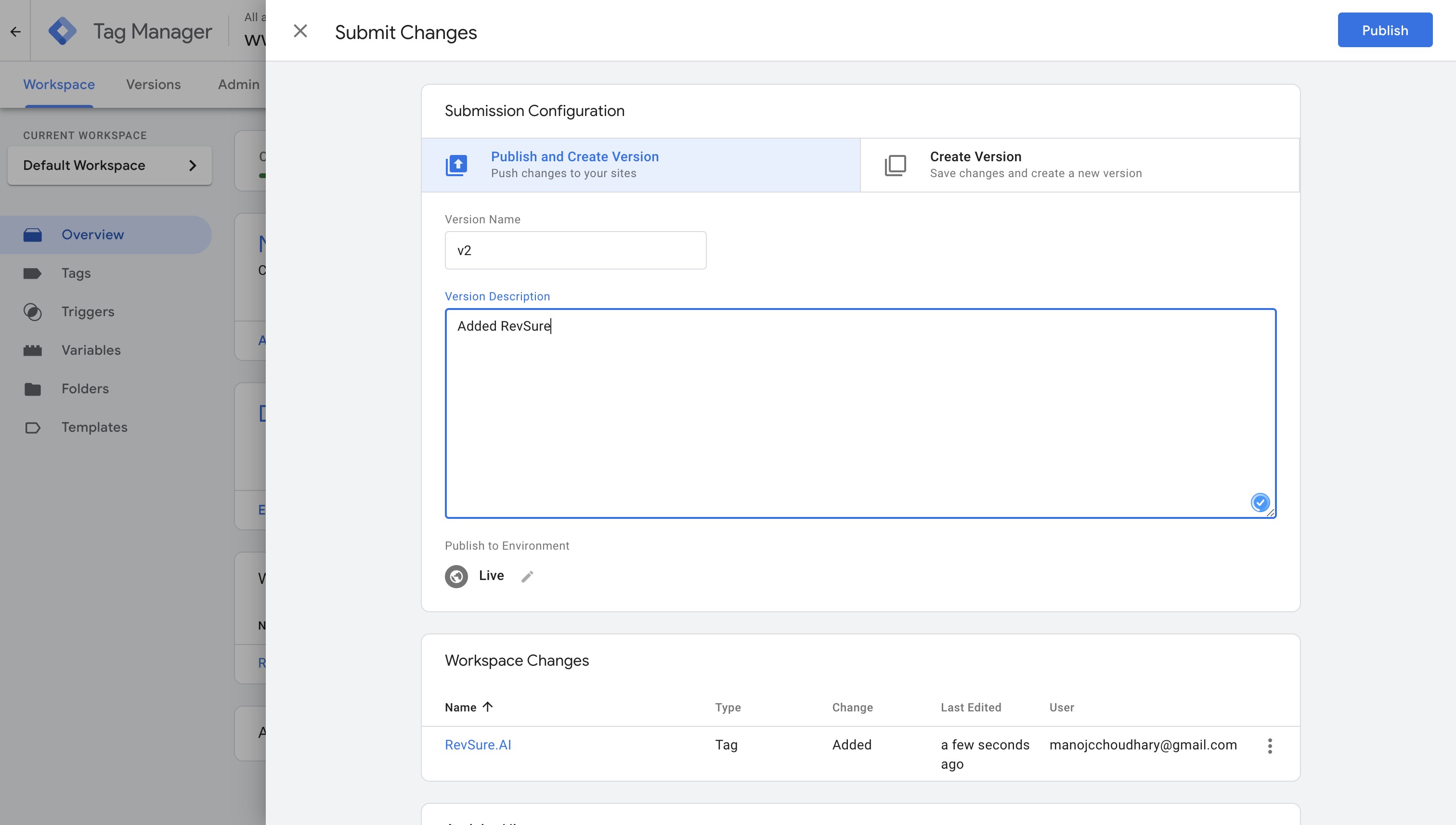
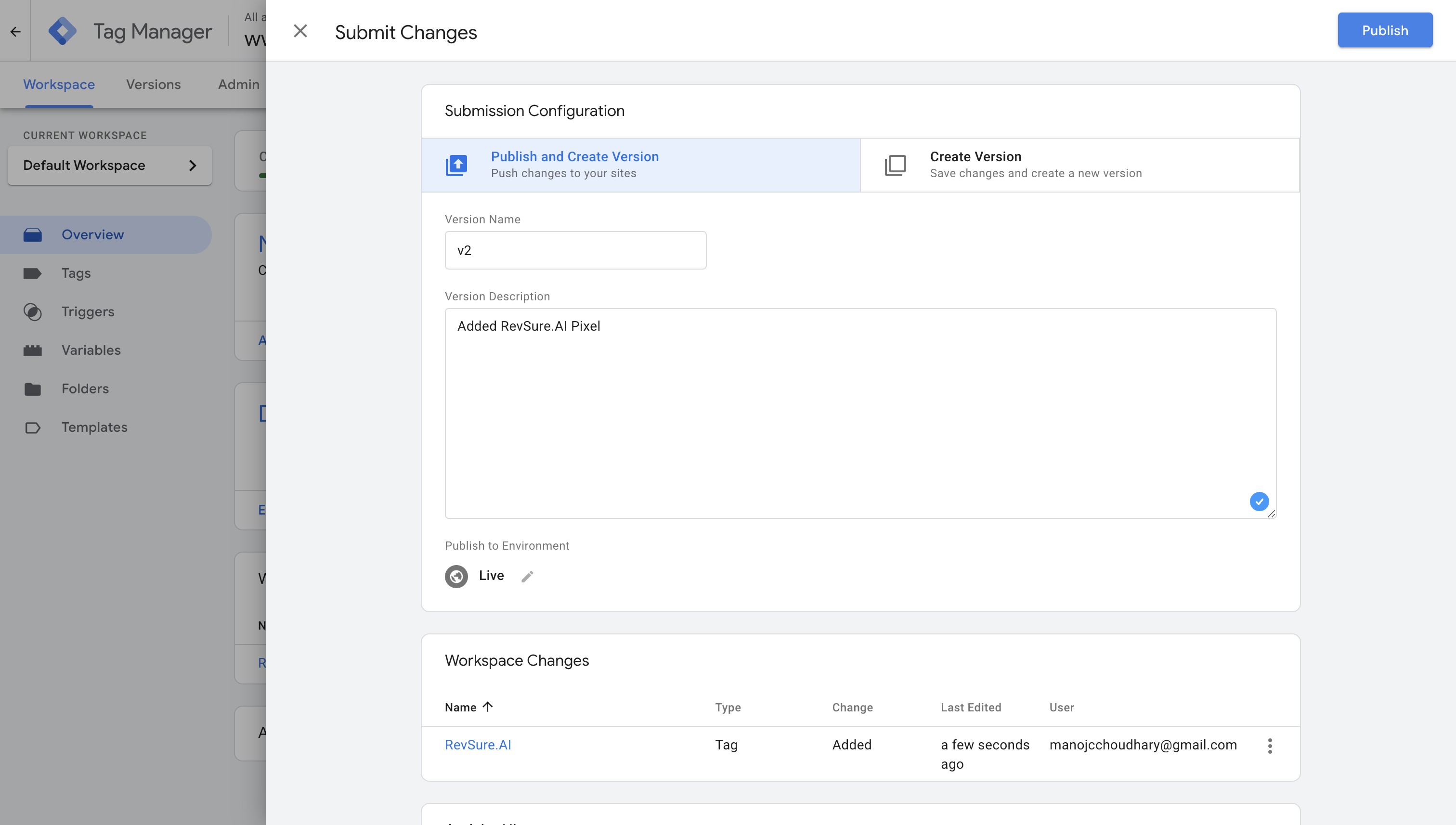
12. Add Version Name (e.g. v1) and Version Description (e.g. added RevSure.AI scripts)
13. Click "Publish" to push the changes to production